When Simple Actually Means Powerful
When it comes to FlexClip Review 2026 review, you know that moment when you need to create a video and your first thought is “ugh, this is going to take forever”? That’s the problem FlexClip was designed to solve.
This isn’t one of those bloated video editors that requires a YouTube tutorial marathon just to figure out the basics. FlexClip is deliberately simple — but in a good way. It’s a browser-based video editor that gives you enough power to make professional-looking videos without drowning you in features you’ll never use.
And here’s what matters: it actually works. No downloads, no complicated timelines, no wrestling with export settings. You open it in your browser, drag some clips around, add text and music, and export. That’s it.
But simple doesn’t mean limited. FlexClip has AI tools, stock media access, screen recording, and enough templates to cover most video needs. Let’s break down whether it’s the right tool for what you’re trying to do.
What FlexClip Actually Is
FlexClip is a cloud-based video editor aimed at people who need to create videos regularly but aren’t professional video editors. Think social media managers, small business owners, marketers, educators, or anyone who needs to produce content without the complexity of Premiere Pro.
The whole thing runs in your web browser. No software to install, no system requirements to worry about, no storage space eaten up by massive video files on your computer. Everything lives in the cloud, which means you can start a project on your desktop and finish it on your laptop later.
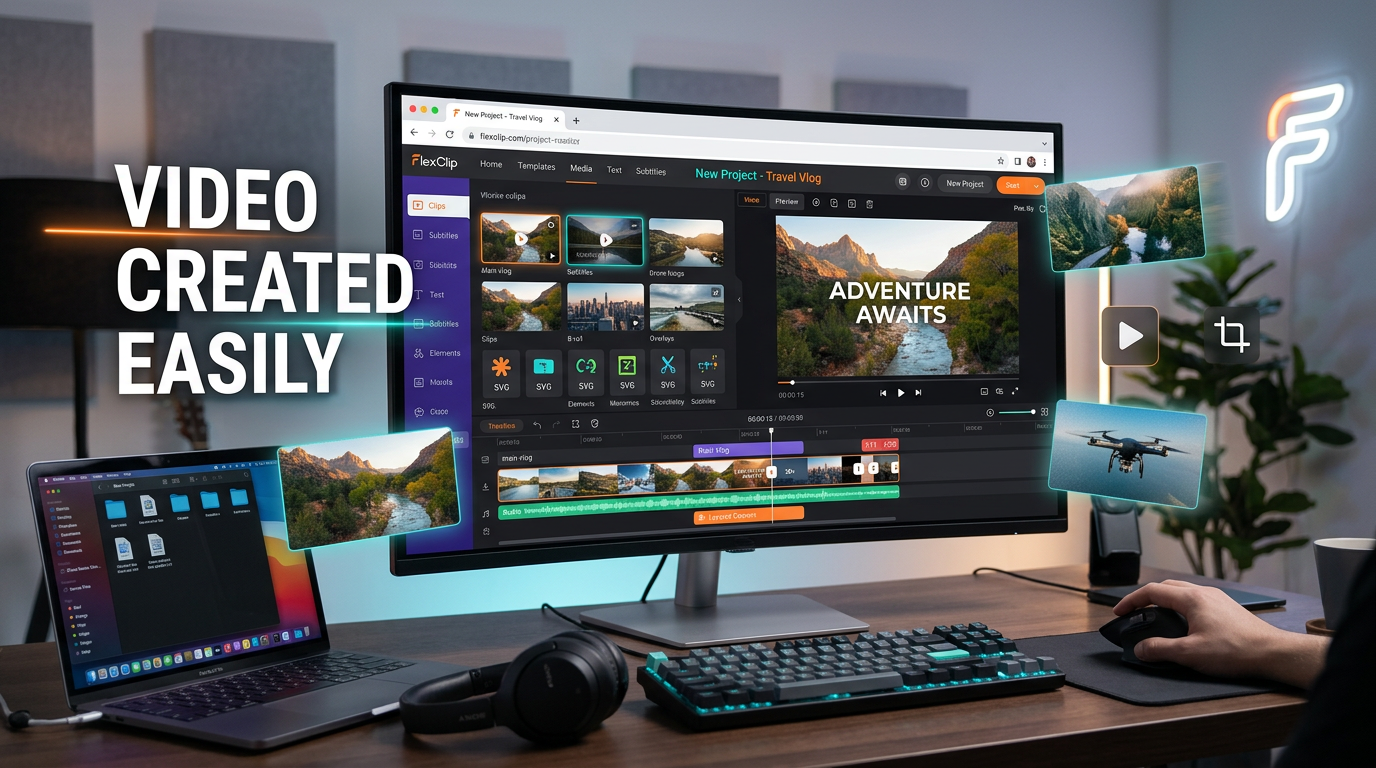
The interface uses a straightforward timeline editor. If you’ve ever used any video editing software before, you’ll recognize the layout immediately. If you haven’t, you can figure it out in about five minutes.
The Core Editing Features
Let’s talk about what you can actually do with FlexClip.
Video Editing Basics
All the fundamentals are here: trim, split, crop, rotate, speed controls, transitions between clips. You can layer multiple video tracks, add text overlays, include images, and drop in background music. Pretty much everything you need for standard video content.
The timeline is clean and responsive. Drag clips to rearrange them, click to trim, double-click to edit properties. It’s intuitive in the way good software should be — you can usually guess how to do something and be right.
Text tools are particularly solid. You’ve got dozens of animated text templates, full customization of fonts and colors, and on paid plans you can even upload your own custom fonts. The text animations look professional without being cheesy.
Templates That Actually Help
FlexClip has over 3,400 video templates organized by category: social media posts, business presentations, ads, slideshows, tutorials, you name it. These aren’t just placeholder layouts — they’re complete video structures with timing, transitions, text placement, and music already set up.
You pick a template, swap out the placeholder content with your own images and text, maybe adjust the colors, and you’ve got a polished video in minutes. For people who aren’t designers, this is incredibly valuable. The templates show you what works, and you just customize from there.
On paid plans, you can also save your own custom templates. Build a video format you like, save it as a template, and your whole team can use it. This is huge for brand consistency.
AI Features That Are Actually Useful
FlexClip has jumped into AI tools, but they’ve done it thoughtfully. These aren’t gimmicks — they solve real problems.
AI Script Generation: Give it a topic and some parameters, and it writes a video script for you. Not Shakespearean, but totally usable for explainer videos or social posts. It’s a solid starting point when you’re staring at a blank page.
AI Image Generator: Need visuals but don’t have the right photos? Describe what you want, and the AI generates images. The quality is good enough for backgrounds or supplementary content in most videos.
Auto Subtitles: This one’s a game-changer. Upload your video, and FlexClip automatically generates subtitles. You can edit them for accuracy, adjust styling, and export. Critical for social media where most videos are watched without sound.
Text-to-Speech: Turn written text into voiceover narration. The voices are AI-generated but sound natural enough for explainer content. Way faster than recording your own voice when you just need narration.
These AI features run on credits. Paid plans include bonus AI credits annually, and you can buy more if needed. This is why FlexClip Review 2026 review stands out in the market.
Stock Media Library
FlexClip gives you access to millions of stock videos, photos, and music tracks. Free plan users get 1 stock video and 1 stock audio per project. Plus plan users get 5 of each. Business plan users get unlimited access.
The quality is good — we’re talking actual professional stock content, not random YouTube clips. For small businesses or creators who can’t afford to license stock media separately, this is a major value add.
The built-in music library has hundreds of tracks organized by mood and genre. All licensed for video use, so you don’t have to worry about copyright issues.
Recording Tools
FlexClip includes screen and webcam recording built right into the editor. You can record your screen, your webcam, or both simultaneously (on paid plans). This is perfect for tutorial videos, product demos, or video messages.
The recording quality is solid, and since it’s integrated into the editor, you can record and immediately start editing without exporting and reimporting files. Small convenience, big time-saver.
FlexClip Pricing: What You Get at Each Level
FlexClip uses a straightforward three-tier model with meaningful differences between plans.
Free Plan – $0
You get 720p HD exports, limited access to AI features (free trial), 1 stock video per project, 1 stock audio per project, and you can save up to 12 projects online. Videos can be up to 10 minutes long.
The catch: there’s a FlexClip watermark on your videos.
This is genuinely functional for testing the platform or creating occasional personal videos. It’s not viable for professional or branded content because of the watermark, but it’s a real free plan, not a demo.
Plus Plan – $11.99/month (billed annually)
This jumps you to 1080p Full HD exports with no watermark. You get 3,600 AI credits bonus per year, 5 stock videos per project, 5 stock audio per project, and access to FlexClip premium resources.
You can save unlimited projects online, create videos of unlimited length, set up a brand kit (logo, colors, fonts), and get 30GB cloud storage plus 100GB video hosting space. You can also upload custom fonts and save up to 100 templates.
The monthly price is $19.99, but annual billing saves you 40% — that’s where the $11.99/month price comes from.
This is the sweet spot for individuals or small teams creating branded content regularly. The watermark removal alone makes it worth it if you’re using videos professionally.
Business Plan – $19.99/month (billed annually)
Everything in Plus, but upgraded: 4K Ultra HD exports, 9,600 AI credits bonus per year, unlimited stock videos, unlimited stock audio, 100GB cloud storage, and 1TB video hosting space. You can save up to 200 templates.
You also get reseller rights, which means you can create videos for clients and charge for them. That’s important if you’re a freelancer or agency.
Monthly price is $29.99 without the annual discount.
This makes sense for businesses creating lots of video content, teams that need higher resolution for professional use, or anyone doing client work.
Teams Plan – Custom Pricing
For organizations with multiple users, FlexClip offers team plans starting at 3 seats. You get shared workspaces, user management, and collaboration features. Pricing starts around $45/month for 3 users but varies based on team size.
Where FlexClip Really Shines
FlexClip is built for specific use cases, and it excels at them. For more insights, see our Waymark AI Video Tool Review 2026: Script-to-TV-Ad in Minutes.
Social Media Content
This is where FlexClip is absolutely in its element. Instagram stories, TikTok videos, YouTube shorts, Facebook posts — the templates are designed for these formats, the export presets are optimized, and the whole workflow is fast.
You can create a week’s worth of social content in an afternoon. Pick templates, customize them with your brand colors and content, batch export, done. For social media managers, this is a productivity multiplier.
Business Presentations and Explainers
Need a video to explain your product? An announcement for your team? A presentation to pitch clients? FlexClip handles these perfectly. The templates are professional, not flashy. The editing tools give you control without complexity.
The screen recording feature is particularly valuable here. Record a walkthrough of your software, add text callouts and voiceover, export. That’s a product demo video in 15 minutes.
Educational Content
Teachers and course creators use FlexClip for lesson videos. The combination of screen recording, stock media access, text overlays, and simple editing makes it easy to create clear, engaging educational content.
The auto-subtitle feature is especially valuable for educational videos — better accessibility and easier comprehension for students watching without audio.
Personal Projects
Slideshows, birthday videos, event recaps, travel montages — FlexClip makes these effortless. The templates show you what’s possible, and the simple editing means you’re not fighting the software to do basic things.
What It Does Really Well
Speed is the standout feature. From idea to finished video happens fast. The template library, cloud-based editing, and streamlined interface all contribute to quick turnaround times. If you need to produce videos regularly, this efficiency matters enormously.
The learning curve is almost nonexistent. You can sit down with FlexClip for the first time and have a finished video within an hour. Compare that to traditional video editing software where you’re watching tutorials for days before producing anything.
Browser-based editing is more convenient than it sounds. No waiting for software updates, no worrying about whether your computer is powerful enough, no file management headaches. It just works, from any device.
The template quality is consistently good. They don’t all look amazing, but they’re all functional and professional enough. You’re never starting from a template thinking “well, I guess I’ll have to fix everything.”
Customer feedback is genuinely positive. Users consistently mention how easy it is to use and how much time it saves them. For software, that’s about the best endorsement you can get.
The Honest Limitations
FlexClip isn’t trying to be professional-grade video editing software, and that shows in a few areas.
Advanced editing features are limited. No color grading, no advanced effects, no motion tracking, no keyframe animation. If you’re trying to do complex visual effects or precise color correction, you’ll hit walls quickly.
The timeline can feel restrictive if you’re used to professional editors. You don’t have the granular control or unlimited tracks that power users expect. It’s designed for simplicity, which means sacrificing some flexibility.
AI credit costs can add up. The bonus credits are nice, but if you’re using AI features heavily (especially image generation), you’ll burn through them. Additional credits cost extra, and that can make the pricing less predictable.
Export times vary based on server load since everything processes in the cloud. Usually it’s fine, but occasionally you’ll wait longer than expected. You’re at the mercy of their servers.
The free plan watermark is pretty prominent. It’s not unusable, but it’s definitely noticeable. You really need a paid plan for anything professional.
How It Compares to Competitors
FlexClip sits in a crowded market with tools like Canva Video, Animoto, InVideo, andKapwing. What makes it different? This is why FlexClip Review 2026 review stands out in the market.
Compared to Canva Video, FlexClip has more robust timeline editing. Canva is more design-focused with video as an add-on. FlexClip is video-first with better editing control.
Compared to Animoto, FlexClip gives you more hands-on editing power. Animoto is more automated and template-driven. FlexClip lets you get into the details if you want to.
Compared to InVideo, FlexClip has a cleaner, less cluttered interface. InVideo has more features but can feel overwhelming. FlexClip is more focused.
Compared to Kapwing, FlexClip has better templates and more stock media access. Kapwing has some unique collaboration features, but FlexClip feels more polished overall.
The pricing is competitive but not the cheapest. You’re paying for the combination of ease-of-use, stock media access, and AI features. If you only need basic editing, there are cheaper options. If you want the whole package, FlexClip’s pricing makes sense.
Who Should Actually Use FlexClip
FlexClip is ideal for:
- Social media managers creating regular content
- Small business owners who need marketing videos
- Educators and trainers making lesson content
- Marketers doing product demos and explainers
- Anyone who needs to make videos quickly without learning complex software
It’s probably not the right fit if you’re a professional video editor, need advanced color grading or effects, or are producing long-form documentary or narrative content. Those use cases need more powerful tools.
Tips for Getting the Most Out of FlexClip
Start with templates, always. Even if you don’t use them exactly as-is, they show you what works and save you from starting with a blank timeline.
Set up your brand kit early if you’re on a paid plan. Loading your logo, colors, and fonts once means every video can be branded consistently without manually adjusting each time.
Use the auto-subtitle feature liberally. It’s fast, the accuracy is good, and subtitles dramatically improve engagement on social media.
Save your own templates for recurring video types. If you create weekly update videos or consistent social posts, build the structure once and save it as a template.
Take advantage of the stock media library. Don’t waste time searching for free stock footage elsewhere when you’ve got millions of professional clips included.
Final Thoughts
FlexClip is exactly what it claims to be: a simple, fast, capable video editor for people who need to create videos without becoming video editing experts.
It doesn’t try to do everything. It focuses on making the most common video creation tasks as easy and fast as possible. For the majority of business and social media video needs, that’s exactly the right approach.
The pricing is fair for what you get. The Plus plan at $11.99/month (annual) removes the watermark, gives you HD exports, and includes enough stock media and AI features to be genuinely productive. The Business plan at $19.99/month adds 4K and unlimited stock access, which makes sense for professional use.
The browser-based approach eliminates friction. No downloads, no updates, no compatibility issues. Just open it and work.
If you’re currently avoiding video content because it seems too complicated or time-consuming, FlexClip removes those barriers. It won’t make you Steven Spielberg, but it’ll help you create professional-looking videos without the professional-level headaches. For more insights, see our Best AI Video Tools for Product Demos in 2026: Showcase, Convert & Sell More.
And for most people, most of the time, that’s exactly what they need.