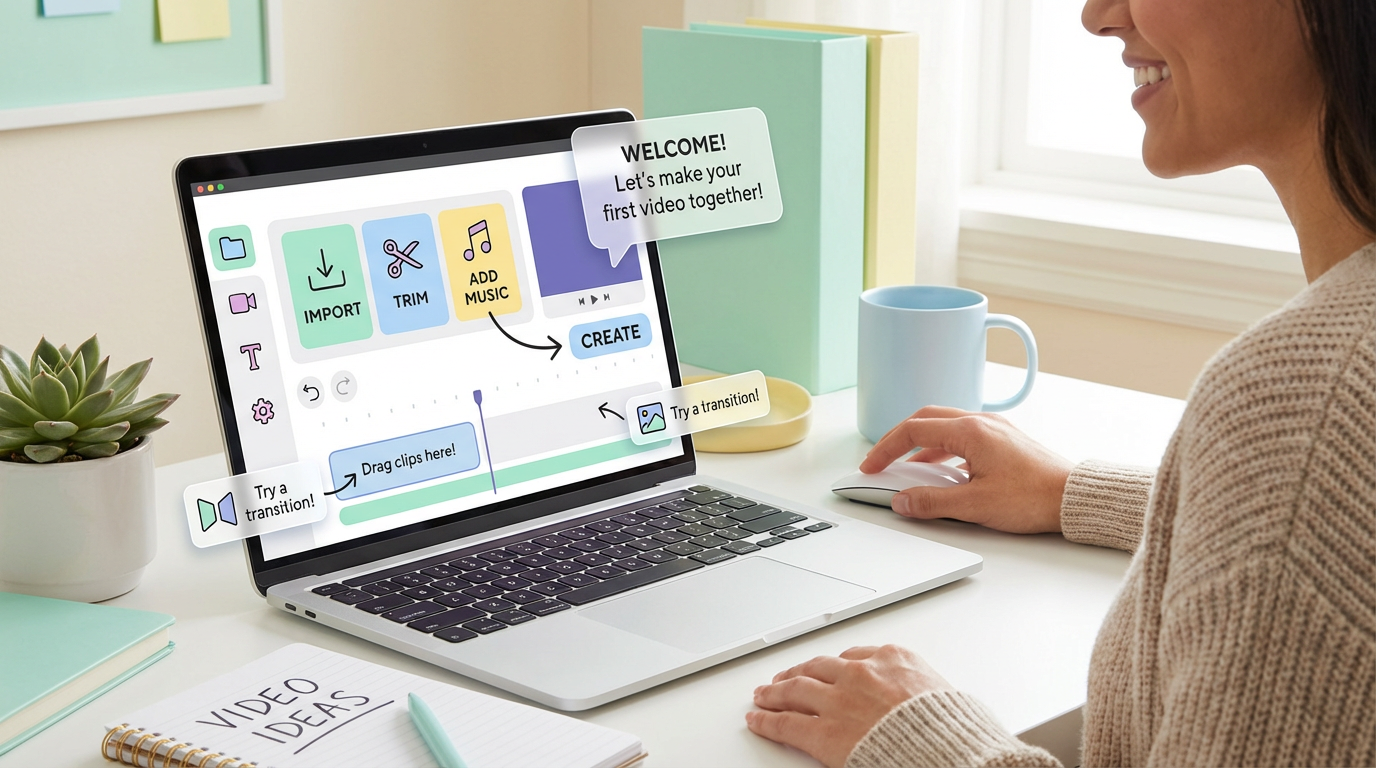
Starting with video creation can feel overwhelming. Complex editing software with hundreds of buttons, confusing timelines, color grading tools you don’t understand—it’s enough to make anyone give up before they begin. But in 2026, AI has completely transformed what’s possible for beginners. You no longer need months of training or expensive software to create professional-looking videos. The right AI tools handle the technical complexity for you, letting you focus on your ideas and message.
This guide cuts through the noise to show you the best AI video tools specifically designed for beginners—platforms where you can create polished, engaging videos without prior editing experience. We’ve tested these tools not as professional editors, but as beginners seeking simplicity and power. Whether you’re creating content for social media, presentations, marketing, or personal projects, these tools make video creation accessible to everyone.
What Makes an AI Video Tool “Beginner-Friendly”?
Not all AI video tools are created equal when it comes to beginners. The best ones share specific characteristics that make them genuinely accessible to people with zero editing experience:
Minimal Learning Curve: You should be able to create your first video within 10-15 minutes of opening the app. True beginner tools don’t require watching hours of tutorials—the interface guides you naturally through the process.
Template-Driven Design: Instead of starting from a blank canvas, beginner tools provide pre-designed templates for common use cases (social media posts, presentations, ads). You simply customize the template with your content.
Automated Editing: The AI handles technical decisions like transitions, timing, color correction, and audio balancing automatically. You shouldn’t need to understand concepts like keyframes, codecs, or aspect ratios.
Built-In Assets: Stock footage, music libraries, and sound effects should be included. Beginners shouldn’t need to source media from multiple platforms or worry about licensing.
Forgiving Interface: Mistakes should be easily reversible with clear undo functions. The platform shouldn’t let you “break” your project with one wrong click.
Affordable Entry Point: Free trials or affordable starter plans let beginners experiment without financial commitment. The best tools offer meaningful capabilities in free tiers.
Best AI Video Tools for Beginners in 2026
1. CapCut: Best Overall for Complete Beginners
Best for: First-time video creators who want professional results with zero editing experience
CapCut has become the go-to platform for beginners because it completely removes the technical barrier to video creation. Unlike traditional editors that overwhelm with options, CapCut’s AI-powered interface guides you through the entire process. You upload footage or describe what you want, and the AI generates clips, adds captions, applies effects, and syncs everything to music automatically.
Beginner-Friendly Features:
- AI-powered auto-cut that generates complete videos from raw footage automatically
- Auto captions generator with 99%+ accuracy in multiple languages
- Smart templates optimized for TikTok, Instagram, and YouTube Shorts
- One-tap effects and filters that apply professional looks instantly
- Beat sync feature that automatically matches cuts to music rhythm
- Text-to-video that creates videos from written descriptions
- Built-in stock footage library with millions of clips
- Mobile and desktop versions with identical functionality
2026 Pricing:
- Free Plan: Generous free tier with most features unlocked, watermark on exports
- Standard Plan: $9.99/month (mobile-only) removes watermark, adds premium effects and features
- Pro Plan: $19.99/month for full cross-platform access, 4K export, premium effects, commercial license (price increased from $9.99 in May 2025)
- Cost at Scale: Unlimited video creation on both plans
Why Beginners Love It: CapCut feels more like using Instagram than editing software. The interface uses familiar social media patterns, so there’s no intimidating timeline or complex menus. You can literally create a polished 60-second video in under 5 minutes your first time using it. The auto-cut feature analyzes your footage, identifies the best moments, and assembles them into a coherent video—perfect for beginners who don’t know what makes a “good cut.”
Learning Curve: 10 minutes to first video, proficient within 1 hour
2. InVideo AI: Best for Template-Based Creation
Best for: Beginners who work well with templates and want AI script assistance
InVideo AI takes a different approach: it provides 10,000+ pre-made templates for virtually every use case imaginable, then uses AI to help you customize them. You select a template category (product promo, how-to, announcement, etc.), and the AI suggests scripts, images, and layouts that fit your topic. It’s like having a creative director guiding every decision.
Beginner-Friendly Features:
- 10,000+ templates covering every common video format
- AI script generator that writes video scripts from topic descriptions
- Text-to-video that auto-populates templates with your content
- Drag-and-drop interface with visual layer management
- Access to millions of stock assets (iStock media included)
- One-click resize for different social platforms
- Voice cloning for consistent narrator across videos
- Direct publishing to YouTube, Facebook, and social media
2026 Pricing:
- Free Plan: Limited features, watermarked exports, good for testing
- Plus Plan: Starting at $28/month – 50 minutes/month AI generation, unlimited exports, no watermark
- Max Plan: Higher tier with 200+ minutes/month and advanced features
- Cost at Scale: Budget-friendly for regular content creators
Why Beginners Love It: Templates eliminate the blank canvas problem. You don’t need to make design decisions or understand composition—the template handles that. The AI script generator is particularly helpful for beginners who struggle with what to say. Describe your topic, and it writes a complete video script with scene suggestions.
Learning Curve: 15 minutes to first video, comfortable within 2 hours
3. Pictory: Best for Repurposing Content
Best for: Bloggers and content creators turning existing text into videos
Pictory specializes in transforming long-form content (blog posts, articles, scripts) into short, engaging videos automatically. This is perfect for beginners who already have written content but don’t know how to visualize it. Paste a blog post URL or script, and Pictory’s AI extracts key points, finds relevant visuals, adds voiceover, and creates a storyboard for easy review.
Beginner-Friendly Features:
- Script-to-video that auto-generates complete videos from text
- Blog-to-video with automatic URL content extraction
- AI-powered highlight detection from long videos
- Automatic summarization that condenses content intelligently
- Text-to-speech voiceover in natural voices
- Visual scene suggestions matched to script content
- Built-in library of 18 million stock videos and images
- Automatic captions with customizable styles
2026 Pricing:
- Starter Plan: $19/month annual ($23 monthly) – 30 video minutes, basic features
- Professional Plan: $29/month annual (higher monthly) – 60 video minutes, advanced features
- Teams Plan: $99/month annual – 180 video minutes, 3 users, priority support
- Cost at Scale: Excellent value for content repurposing workflows
Why Beginners Love It: If you can write, you can create videos with Pictory. There’s no need to understand visual storytelling or pacing—the AI matches visuals to your script automatically. The highlight detection feature is brilliant for beginners with long recordings (webinars, interviews) who don’t know how to edit them down.
Learning Curve: 10 minutes to first video, proficient within 1 hour
4. Synthesia: Best for Professional Avatar Videos
Best for: Creating training, educational, or presentation videos without being on camera
Synthesia uses AI avatars (realistic digital humans) to present your content professionally. You type a script, choose an avatar, and the platform generates a video of the avatar delivering your message. This is perfect for camera-shy beginners or anyone who wants consistent, professional-looking presenter videos without filming.
Beginner-Friendly Features:
- 240+ ready-made AI avatars in diverse ethnicities and styles (updated 2026 library)
- Text-to-speech in 140+ languages with natural pronunciation
- Simple script editor—just type what the avatar should say
- Scene-based workflow that’s easier than timeline editing
- Brand kit for consistent styling across videos
- Screen recording integration for tutorials
- Custom avatar creation from your own photos (higher tiers)
- Bulk video generation from CSV files
2026 Pricing:
- Free Plan: 36 minutes per year to test the platform (9 basic avatars)
- Starter Plan: $18/month annual ($29 monthly) – 10 video minutes/month, 80+ avatars, watermark-free
- Creator Plan: $64/month annual ($89 monthly) – 40 video minutes/month, all 240+ avatars, custom avatar creation
- Cost at Scale: Annual billing saves significantly over monthly
Why Beginners Love It: Synthesia is extremely focused—it does one thing (avatar videos) exceptionally well. The interface is deliberately simple: script editor, avatar selector, done. No confusing timeline, no effects to figure out. The avatars look professional enough that viewers often can’t tell they’re AI-generated, which gives beginners confidence in their output quality.
Learning Curve: 5 minutes to first video, fully competent within 30 minutes
5. Lumen5: Best for Social Media Marketing
Best for: Marketers and small businesses creating branded social content
Lumen5 simplifies social media video creation through intelligent templates and AI-assisted content matching. The platform is designed around the way marketers think—starting with messaging, not editing. You input key messages, and Lumen5 suggests visuals, layouts, and animations that emphasize your points professionally.
Beginner-Friendly Features:
- Content-aware media matching that suggests relevant visuals automatically
- Storyboard-based workflow (easier than timeline editing)
- Automatic text highlighting and animation
- Brand kit that applies consistent colors and fonts
- Vast curated media library with commercial-use rights
- Talking head integration for presenter-style videos
- One-click formatting for different platforms
- AI voiceover with natural-sounding text-to-speech
2026 Pricing:
- Basic Plan: $29/month – 720p exports, watermark included
- Starter Plan: $79/month – 1080p exports, no watermark
- Professional Plan: $199/month – custom branding, priority support
- Cost at Scale: Unlimited video creation on all plans
Why Beginners Love It: Lumen5’s storyboard interface is far less intimidating than traditional timelines. Each “block” represents a message or scene, and you customize blocks independently. The AI suggests media that matches your text content, so you don’t need to be a visual thinker—just describe your message, and Lumen5 visualizes it.
Learning Curve: 20 minutes to first video, comfortable within 2 hours
6. VEED.io: Best Browser-Based Option
Best for: Beginners who want to edit anywhere without installing software
VEED.io runs entirely in your browser, meaning you can edit videos from any device without downloads or installations. It combines simple AI features (auto subtitles, background removal) with an accessible editing interface. Perfect for beginners who want more control than fully automated tools but don’t want software complexity.
Beginner-Friendly Features:
- Browser-based—works on any device with no installation
- Auto subtitle generation with one-click accuracy
- AI background remover for green-screen effects without green screens
- Simple timeline that’s easier to understand than pro software
- Template library for common video formats
- Collaboration features for team editing
- Direct social media publishing
- Screen and webcam recording built-in
2026 Pricing:
- Free Plan: Basic features, 720p exports with watermark
- Basic Plan: $24/month – 1080p exports, removes watermark
- Pro Plan: $59/month – 4K exports, advanced AI features
- Cost at Scale: Unlimited video creation on all plans
Why Beginners Love It: No installation barrier means you can start creating immediately. The interface strikes a nice balance—simple enough for beginners, but with enough control to grow your skills. Auto subtitles are particularly powerful for social media content where most viewers watch without sound.
Learning Curve: 15 minutes to first video, comfortable within 90 minutes
7. FlexClip: Best for Quick Edits and Slideshows
Best for: Creating simple presentations, greeting videos, and basic edits fast
FlexClip is designed for speed and simplicity above all else. It’s perfect for beginners who need to create straightforward videos quickly—birthday greetings, simple announcements, photo slideshows, basic tutorials. The AI features are targeted and practical rather than comprehensive.
Beginner-Friendly Features:
- Extremely simple interface with minimal buttons
- Text-to-video storyboard generator
- AI image generator for custom visuals
- AI voiceover with natural speech synthesis
- Background remover for clean compositions
- Thousands of templates for common occasions
- Stock media library with easy search
- One-click music sync to beat
2026 Pricing:
- Free Plan: 480p exports with watermark, limited features
- Basic Plan: $9.99/month – 720p exports, removes watermark
- Plus Plan: $19.99/month – 1080p exports, premium features
- Cost at Scale: Unlimited video creation on all plans
Why Beginners Love It: FlexClip is deliberately minimal—fewer options means less confusion. For absolute beginners who just want to string photos together with music or create a simple announcement, FlexClip’s simplicity is a feature, not a limitation.
Learning Curve: 5 minutes to first video, fully comfortable within 30 minutes
Comparison Table: Best for Different Beginner Needs
| Tool | Best For | Starting Price | Learning Time | Key Strength |
|---|---|---|---|---|
| CapCut | Complete beginners, social media | Free (Standard: $9.99, Pro: $19.99) | 10 minutes | Most automated, easiest overall |
| InVideo AI | Template lovers, marketers | $28/month | 15 minutes | Massive template library |
| Pictory | Content repurposing, bloggers | $19/month | 10 minutes | Best text-to-video conversion |
| Synthesia | Avatar videos, training | $18/month | 5 minutes | Most professional avatars |
| Lumen5 | Social marketing, branding | $29/month | 20 minutes | Best for branded content |
| VEED.io | Browser-based editing | $24/month | 15 minutes | Works anywhere, no install |
| FlexClip | Quick edits, slideshows | $9.99/month | 5 minutes | Simplest interface |
How to Choose the Right Beginner Tool
Choose CapCut if you:
- Want the absolute easiest platform with maximum automation
- Create content primarily for TikTok, Instagram, or YouTube Shorts
- Need auto-captions and beat-synced editing
- Want a generous free tier before committing
- Prefer mobile and desktop flexibility
Choose InVideo AI if you:
- Work best with templates and structured guidance
- Need AI help writing scripts and planning videos
- Create marketing or promotional content regularly
- Want access to extensive stock asset libraries
- Value variety in visual styles and formats
Choose Pictory if you:
- Already have written content (blogs, scripts) to repurpose
- Want to turn long videos into highlights automatically
- Need quick video summaries of content
- Prefer a completely hands-off approach
- Focus on content repurposing over original creation
Choose Synthesia if you:
- Want professional presenter videos without being on camera
- Create training, educational, or explainer content
- Need multi-language video versions
- Value ultra-simple, focused interface
- Want consistent, professional-looking output every time
Choose Lumen5 if you:
- Create social media marketing content
- Need strong branding consistency across videos
- Want intelligent content-to-visual matching
- Create videos from key messages rather than full scripts
- Prefer storyboard workflow over timeline editing
Choose VEED.io if you:
- Don’t want to install software on your device
- Need to edit from different computers or tablets
- Want more control than fully automated tools
- Collaborate with team members on videos
- Need reliable auto-subtitle generation
Choose FlexClip if you:
- Create simple videos quickly (greetings, announcements, slideshows)
- Want the absolute simplest interface possible
- Need occasional video creation, not daily use
- Have a tight budget (affordable entry tier)
- Don’t need advanced features or effects
Beginner Tips for Success with AI Video Tools
1. Start with Templates, Not Blank Projects: Templates provide structure and eliminate creative paralysis. Customize existing templates before attempting original designs.
2. Use Auto-Captions Always: Subtitles make videos accessible and improve engagement (85% of social media viewers watch without sound). Let AI generate them automatically.
3. Keep Early Videos Short: Start with 30-60 second videos. Master short-form creation before attempting longer content. It’s easier to maintain quality over shorter durations.
4. Leverage Stock Assets Liberally: Don’t feel you need to film everything. Stock footage and images are professional-quality and save massive time.
5. Trust the AI’s Automation: Resist the urge to manually adjust everything. Let the AI handle timing, transitions, and effects initially. Manual tweaking can break what already works.
6. Study Examples Before Creating: Watch videos in your target format (TikTok, YouTube, etc.) to understand what works before creating your own.
7. Use Free Tiers to Experiment: Test multiple tools before committing financially. Each platform’s workflow feels different—find what clicks for you.
8. Focus on Message, Not Perfection: Your first videos won’t be perfect, and that’s fine. Clear messaging matters more than cinematic quality for beginners.
Common Beginner Mistakes to Avoid
Overcomplicating Early Projects: Don’t try to create a Hollywood production as your first video. Start simple—one message, clear visuals, short duration.
Ignoring Platform Specifications: Each social platform has optimal video specs (9:16 for TikTok, 16:9 for YouTube). Use templates designed for your target platform.
Adding Too Many Effects: Beginners often add every effect and transition available. Restraint looks more professional than over-editing.
Skipping Audio: Bad audio ruins good video. Use the platform’s stock music or ensure your recordings have clean sound.
Not Testing Before Publishing: Always preview your entire video before publishing. Watch for timing issues, typos in captions, or awkward cuts.
Forgetting About Aspect Ratio: Creating a horizontal video for vertical platforms (or vice versa) looks amateurish. Match your aspect ratio to your destination platform.
Frequently Asked Questions
Do I really need zero experience to use these tools?
Yes. Tools like CapCut, Synthesia, and FlexClip are specifically designed for people who’ve never edited video. You can create your first video within minutes of signing up.
What’s the difference between AI video tools and traditional editors like Premiere Pro?
Traditional editors give you complete control but require learning complex workflows. AI tools automate technical decisions, letting you focus on content rather than technique.
Can I create professional-quality videos as a beginner?
Absolutely. Modern AI tools produce output that rivals professionally edited videos. The quality gap between beginner and pro tools has narrowed dramatically.
Which tool should I start with if I’ve never created video before?
CapCut is the best starting point for absolute beginners. Its automation handles the most complex decisions, and the free tier is genuinely useful.
How long does it take to become comfortable with these tools?
Most beginners feel comfortable creating simple videos within 1-2 hours of use. Mastering advanced features takes longer, but basic competence comes quickly.
Are free plans actually usable, or do I need to pay?
Many free plans (especially CapCut’s) are genuinely usable for learning. You’ll outgrow them eventually, but they’re perfect for beginners testing the waters.
What equipment do I need besides the software?
Just your computer or smartphone. These tools work with whatever device you already own—no special hardware required.
Can I use these tools for business or commercial content?
Most paid plans include commercial usage rights. Always verify licensing for stock assets and check each platform’s terms for your specific use case.
Pricing Verification
Pricing and features verified February 2026. Tool capabilities and pricing are subject to change. Visit official websites for current offerings.
Conclusion: Your Video Creation Journey Starts Today
The barrier to video creation has never been lower. In 2026, you don’t need expensive equipment, months of training, or professional editing skills to create engaging videos. The AI tools in this guide handle the technical complexity, letting you focus on what matters—your message, your creativity, your ideas.
For absolute beginners, CapCut offers the smoothest entry point with its intuitive automation and generous free tier. If you prefer working with templates, InVideo AI provides structure and guidance. For content repurposing, Pictory turns existing text into videos effortlessly. And if you want professional avatar videos without being on camera, Synthesia is unmatched.
The key is to start—pick one tool, create your first video today, and let the AI handle the technical details. Your first video won’t be perfect, and that’s completely fine. Video creation is a skill that develops with practice, but with these beginner-friendly AI tools, you’ll be creating polished, professional-looking content faster than you ever thought possible. The journey from intimidated beginner to confident creator is shorter than you think, and it starts with clicking “create” on any of these platforms.