When Video Editing Feels Like Typing a Document
You know that feeling when you need to edit a video but the thought of scrubbing through timelines and splitting clips makes you want to take a nap instead? Yeah, me too.
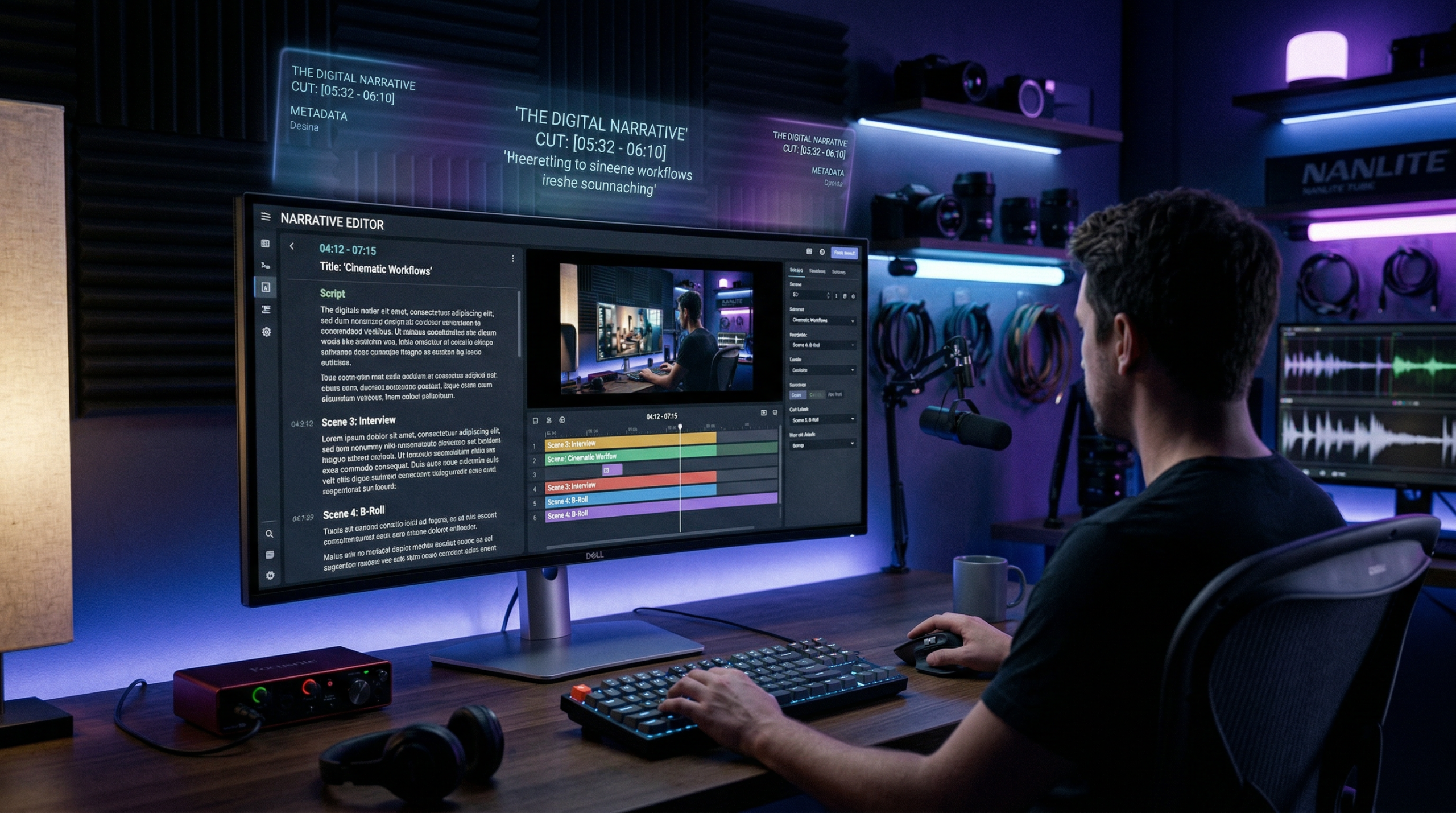
Vrew is built for that exact moment. It’s an AI video editor that works more like Google Docs than Adobe Premiere. You edit the text transcript, and the video follows along. Sounds almost too simple, right?
But here’s what caught my attention: while everyone’s obsessing over flashy AI video generators, Vrew quietly focuses on making the actual editing part less painful. It’s been around since the late 2010s (developed by Voyagerx in South Korea), and it’s gained a solid following among YouTube creators, podcasters, and anyone who needs to turn long-form content into snappy clips.
So let’s see if this text-based editing thing is actually useful or just another gimmick.
What Vrew Actually Does (And Who It’s For)
Vrew is fundamentally a video editor that treats your footage like a document. Here’s the basic workflow:
- Upload your video
- Vrew automatically transcribes everything that’s said
- You edit the text transcript (delete sentences, rearrange sections, whatever)
- The video cuts itself based on your text edits
It’s aimed at content creators who spend more time editing talking-head videos than creating special effects. Think YouTubers, podcasters converting audio to video, course creators, and marketing teams churning out social media content.
If you’re looking to make the next Blade Runner, this isn’t your tool. But if you need to cut a 45-minute interview down to a tight 8-minute highlight reel? Vrew’s built exactly for that.
Core Features: The Stuff That Actually Matters
AI-Powered Transcription
This is where Vrew starts. Upload a video, and it transcribes the audio in minutes. The accuracy is solid — not perfect, but better than fumbling with manual captions. It supports multiple languages including English, Korean, Japanese, Spanish, and more.
The transcript appears synced with your video timeline. Every sentence is clickable, so you can jump directly to that moment in the footage. It’s way faster than scrubbing through looking for that one quote you need.
Text-Based Video Editing
Here’s where it gets interesting. You can delete entire sentences from the transcript, and Vrew automatically removes those sections from the video. No timeline scrubbing, no precision cuts, no “oops I cut off the first syllable.”
Want to rearrange your video? Cut and paste text blocks. The video reorders itself. It feels weird at first — almost too easy — but after 10 minutes you’ll wonder why all video editors don’t work this way.
Automatic Subtitle Generation
Since Vrew already transcribed everything, adding subtitles is literally one click. You get customizable subtitle styles, positioning, and timing. The subtitles are editable (because AI transcription always needs some cleanup), and you can export them as separate SRT files.
For social media content where 85% of videos are watched without sound, this feature alone is worth the price of admission.
AI Voice Generation
Need narration but don’t want to record yourself? Vrew has text-to-speech with multiple AI voices. The quality is… okay. Not “Hollywood movie” level, but good enough for explainer videos, tutorials, or background narration. You can adjust speed, pitch, and tone.
Honestly, I’d still prefer a real human voice for anything client-facing, but for quick social media clips or drafts, it’s handy.
Stock Media Library
Vrew includes access to stock images and videos to fill in visual gaps. If you’re creating a podcast video and need B-roll to keep things interesting, you can search and insert clips directly without leaving the editor.
The library isn’t massive compared to dedicated stock sites, but it’s convenient when you just need something quick.
Speech Editor
This feature lets you remove filler words (um, uh, like) and awkward pauses automatically. You can also speed up or slow down specific sections without affecting the entire video. It’s perfect for tightening up interviews or presentations without re-recording.
Export Options
You can export in various resolutions (up to 4K depending on your plan), aspect ratios (16:9, 9:16, 1:1 for different platforms), and formats. Vrew also lets you export just the audio or just the subtitles separately, which is useful for repurposing content.
Pricing: What You’ll Actually Pay
Vrew offers a free tier and three paid plans. Here’s the breakdown based on current 2026 pricing:
| Plan | Monthly Price | Annual Price | Key Features |
|---|---|---|---|
| Free | $0 | $0 | Basic editing, 720p export, watermark on videos, limited AI features |
| Lite | $8.99 | $67/year (~$5.58/mo) | 1080p export, no watermark, unlimited video length, AI transcription |
| Standard | $13.99 | $124/year (~$10.33/mo) | 4K export, advanced AI voices, priority processing, more stock assets |
| Business | $34.99 | $345/year (~$28.75/mo) | Team collaboration, commercial license, API access, premium support |
My take: The Lite plan at $67/year is the sweet spot for most creators. You get everything you actually need — good export quality, no watermark, and full AI transcription. Unless you’re producing 4K content or need team features, Standard and Business feel like overkill.
The free plan is fine for testing the waters, but that watermark kills it for any real publishing.
The Good, The Bad, and The “Hmm…”
What Works Really Well
Speed: Text-based editing is genuinely faster once you get used to it. What used to take me an hour of timeline fiddling now takes 20 minutes of text editing.
Transcription accuracy: Better than YouTube’s auto-captions and way better than manual typing. English transcription is particularly solid.
Subtitle workflow: From transcription to stylized, exported subtitles in minutes. It’s almost absurdly easy.
Learning curve: If you can edit a Word doc, you can use Vrew. The interface is clean and intuitive.
Platform availability: Works on Windows, Mac, and even has mobile apps. Your projects sync across devices.
What Could Be Better
Advanced editing: If you need multi-track editing, complex transitions, or color grading, you’ll hit Vrew’s limits fast. It’s designed for simple cuts and content repurposing, not cinematic production.
AI voices: They’re functional but obviously synthetic. Fine for drafts, awkward for final delivery.
Stock library: Smaller than dedicated stock platforms. You’ll still need Pexels or Unsplash for variety.
Export speed: Not the fastest, especially on longer videos. Budget extra time if you’re on a deadline.
Pricing transparency: Some AI features (like certain voice options) have usage limits even on paid plans, which isn’t clearly explained upfront.
The Verdict Box
| Category | Rating |
|---|---|
| Ease of Use | ★★★★★ (5/5) |
| Feature Set | ★★★★☆ (4/5) |
| Value for Money | ★★★★☆ (4/5) |
| Transcription Accuracy | ★★★★☆ (4/5) |
| Export Quality | ★★★★☆ (4/5) |
| Overall | ★★★★☆ (4/5) |
How Vrew Stacks Up Against Competitors
Let’s be real — Vrew isn’t the only player in this space. Here’s how it compares to three major alternatives:
| Feature | Vrew | Descript | Kapwing | VEED |
|---|---|---|---|---|
| Starting Price | $67/year | $12/month | $16/month | $12/month |
| Text-Based Editing | Yes | Yes (better) | Yes | Limited |
| AI Transcription | Excellent | Excellent | Good | Good |
| Filler Word Removal | Yes | Yes (advanced) | No | No |
| Collaboration | Business plan only | All paid plans | All paid plans | Pro plan |
| Platform | Desktop + Mobile | Desktop + Web | Web-based | Web-based |
| Best For | Solo creators, budget-conscious | Podcasters, teams | Social media, quick edits | Beginners, templates |
The takeaway: Vrew is the most affordable if you pay annually. Descript has more advanced features but costs more. Kapwing and VEED are web-based (no download required) but lack some of Vrew’s AI smarts. Your choice depends on whether you prioritize price (Vrew), power (Descript), or convenience (Kapwing/VEED).
Real-World Use Cases: When Vrew Shines
Scenario 1: Repurposing Long-Form Content
The situation: You’ve recorded a 45-minute podcast interview and need three 90-second clips for Instagram Reels.
How Vrew handles it:
- Upload the full video
- Read the transcript and highlight three interesting exchanges
- Copy those text sections into new projects (Vrew creates the clips automatically)
- Add auto-subtitles with a trendy style
- Export in 9:16 vertical format
Time saved: What would take 2-3 hours in traditional editing takes maybe 30 minutes in Vrew.
Scenario 2: Cleaning Up Interview Footage
The situation: You interviewed someone for a promotional video, but they said “um” approximately 47 times and had awkward pauses.
How Vrew handles it:
- Use the Speech Editor to automatically detect and remove filler words
- Adjust silence lengths to tighten pacing
- Delete entire tangents by removing text blocks
- Add B-roll footage over longer segments
Result: Professional-looking interview without the tedious frame-by-frame editing.
Scenario 3: Creating Accessible Content
The situation: You need to add accurate subtitles to your tutorial videos for accessibility and SEO.
How Vrew handles it:
- AI transcription creates the base subtitles
- Quick text edit to fix any transcription errors
- Choose a readable subtitle style
- Export both the video and separate SRT file
Bonus: You can upload the SRT to YouTube separately for better search ranking.
Expert Tips: Getting the Most Out of Vrew
1. Edit the transcript before heavy video work. Get the content flow right in text first. It’s faster to rearrange sentences than video clips.
2. Use keyboard shortcuts. Vrew supports spacebar for play/pause, arrow keys for navigation, and Cmd/Ctrl+K to split clips. Learn them and you’ll fly.
3. Create subtitle templates. Once you’ve designed a subtitle style that works for your brand, save it as a preset. Consistency across videos looks more professional.
4. Export in batches. If you’re creating multiple clips from one source video, set up all your edits, then export them all overnight. Vrew’s export isn’t the fastest, so batch processing saves time.
5. Double-check AI transcription. Always. The accuracy is good, but it’s not perfect. One wrong word in a subtitle can change your entire meaning (or make you look sloppy).
6. Use the mobile app for on-the-go edits. You can review transcripts and make text edits from your phone, then finalize the export on desktop. Great for workflow efficiency.
7. Leverage the silence trimming. Vrew can automatically detect and shorten silences. Use it on rough footage, but review the results — sometimes pauses add dramatic effect.
8. Combine with other tools. Vrew is excellent for editing and subtitles, but it’s not a full production suite. Use it for the heavy lifting, then fine-tune in DaVinci Resolve or Final Cut if needed.
Who Should Actually Use Vrew?
Vrew is perfect for you if:
- You create talking-head content (vlogs, interviews, tutorials, presentations)
- You need to add subtitles to videos regularly
- You’re editing primarily for social media or YouTube
- You want to repurpose long content into shorter clips
- You hate traditional timeline-based editing
- You’re working solo or with a small team
- You’re budget-conscious but need professional results
Skip Vrew if:
- You’re producing cinematic content with complex effects
- You need advanced color grading or audio mixing
- Your workflow requires extensive team collaboration
- You’re already deeply invested in another ecosystem (like Adobe)
- You primarily edit footage without dialogue (music videos, product demos)
The Bottom Line: Is Vrew Worth It?
Here’s my honest verdict: Vrew is really good at what it does, but it’s not trying to be everything to everyone.
If your video editing workflow involves lots of dialogue — interviews, podcasts, tutorials, vlogs, presentations — Vrew will save you hours of tedious work. The text-based editing genuinely changes how you approach cuts, and the automatic transcription alone is worth the annual fee.
But if you’re shooting narrative films, creating motion graphics, or need serious color grading, Vrew will frustrate you with its limitations.
The pricing is reasonable, especially the Lite plan at $67/year. That’s cheaper than one month of Adobe Premiere, and for content creators focused on talking-head videos, Vrew delivers way more value.
My recommendation: If you’re even slightly curious, grab the free version and try it on one project. The text-based editing feels weird at first, but after one video, you’ll either love it or know it’s not for you. No long-term commitment needed.
For solo creators and small teams churning out social media content, Vrew is a legitimate time-saver. It won’t replace a full production suite, but it’ll handle 80% of your editing in 20% of the time.
And honestly? That’s exactly what most of us need.
Rating: 4 out of 5 stars
Best for: YouTube creators, podcasters, social media managers, course creators, and anyone who spends too much time editing dialogue-heavy videos.
Skip if: You need advanced visual effects, cinematic color grading, or extensive multi-track audio mixing.