When You Need Video Ads Yesterday (But Don’t Have a Design Team)
When it comes to Offeo Review 2026 pricing, here’s a scenario you’ve probably lived: it’s 3 PM on a Tuesday, and your boss just asked for “a few quick video ads for Facebook by tomorrow morning.” You don’t have Adobe After Effects skills. You don’t have a motion graphics budget. And you definitely don’t have time to learn video editing from scratch.
This is exactly the problem Offeo was built to solve. It’s an online video maker designed for people who need professional-looking animated videos fast—marketers, small business owners, social media managers, anyone who needs to pump out video content without becoming a video editor.
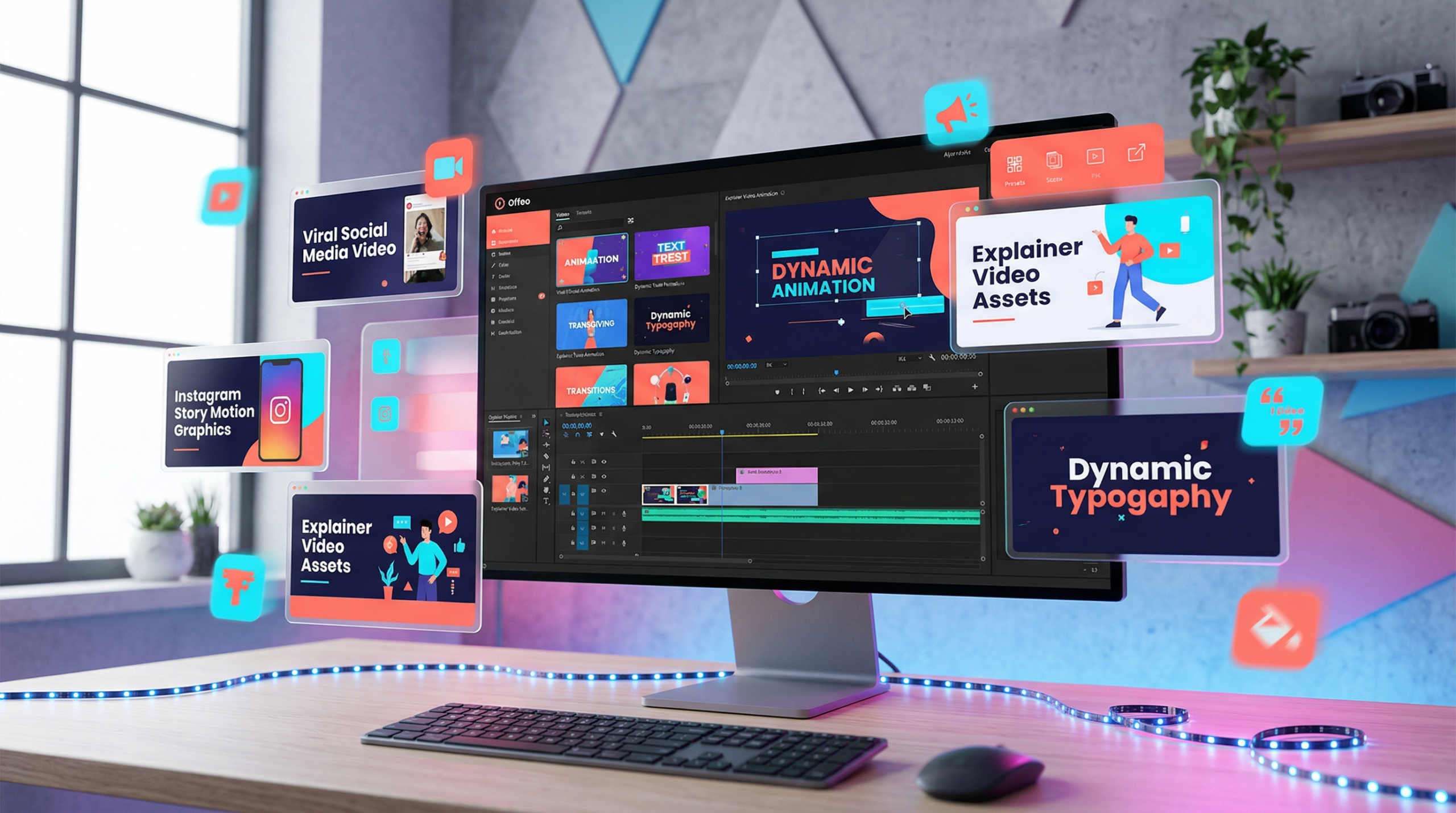
With over 3,000 templates, drag-and-drop editing, and built-in animations, Offeo promises to make video creation as easy as making a PowerPoint. But does it actually deliver? And more importantly, are there annoying limitations that’ll make you regret choosing it?
Let’s find out.
What Offeo Actually Does
Offeo is fundamentally a template-based video creation platform. Here’s the basic workflow:
Choose from 3,000+ Templates
Offeo’s library includes templates for pretty much every marketing need—Facebook ads, Instagram stories, YouTube intros, product promos, explainer videos, and more. The templates are categorized by industry (real estate, e-commerce, tech, etc.) and use case, so you can find something relevant quickly.
Each template comes with pre-designed animations, text placements, and timing. You’re not starting from a blank canvas—you’re customizing something that already looks good.
Drag-and-Drop Editing
Once you pick a template, you can customize everything: swap out images and videos, change text, adjust colors to match your brand, and tweak animations. The editor is browser-based and works like Canva—click an element, edit it, done.
You’ve also got access to a library of stock footage, images, icons, and music tracks. If you need a background video of someone typing on a laptop or upbeat music for your product demo, it’s all included.
Animated Text and Graphics
This is where Offeo stands out from static design tools. You can add animated text with effects like typewriter, fade-in, bounce, and slide. Same goes for graphics—logos can spin in, icons can pop up, and transitions can add polish without you manually keyframing anything.
For non-designers, this is huge. You get motion graphics that would normally require After Effects skills, but it’s all point-and-click.
Resize for Multiple Platforms
Create your video once, then resize it for different platforms—square (1:1) for Instagram, vertical (9:16) for Stories and TikTok, horizontal (16:9) for YouTube. Offeo automatically adjusts the layout so you don’t have to recreate everything.
Export and Share
When you’re done, export as MP4 or GIF. You can download directly or share via a link. Some plans also let you schedule posts directly to social media, though this feature is more limited compared to dedicated social tools like Buffer.
Pricing: What You’ll Actually Pay
Offeo’s pricing is a bit all over the place because they’ve run multiple promotions and lifetime deals over the years. Here’s what you need to know:
| Plan | Price | Video Exports | Key Features |
|---|---|---|---|
| Free | $0 | Limited (watermarked) | Access to templates, Offeo watermark, low-res exports |
| Standard | $19/month | Unlimited | No watermark, HD exports, full template library |
| Lifetime Deal | $98 (one-time) | Unlimited | All features, lifetime access (when available) |
| Group Buy | $3/month | Varies | Shared account access (unofficial, risky) |
The Lifetime Deal Situation: Offeo has offered lifetime deals through platforms like AppSumo in the past. If you can catch one of these deals, $98 for lifetime access is a steal. But they’re not always available, so you might be stuck with monthly pricing.
Group Buy Warning: You’ll find “group buy” offers for $3/month where multiple people share one premium account. This violates Offeo’s terms of service and your account can get banned. Not worth the risk if you’re using it for client work.
Value Assessment: At $19/month, you’re paying about the same as Canva Pro. If you’re creating 5-10 videos per month, that’s roughly $2-4 per video, which is cheaper than hiring a freelancer ($50-200 per video) or subscribing to stock footage sites separately.
Pros & Cons: The Honest Truth
What Works Really Well
Massive Template Library:With 3,000+ templates, you’re almost guaranteed to find something close to what you need. This saves hours compared to starting from scratch. This is why Offeo Review 2026 pricing stands out in the market.
Easy Learning Curve: If you can use Canva or PowerPoint, you can use Offeo. The interface is intuitive, and you don’t need to watch tutorials to get started.
Built-In Animations: Getting animated text and graphics without learning After Effects is a huge win. The pre-built animation effects look professional and add polish to otherwise basic videos.
Stock Assets Included: Access to royalty-free music, stock footage, and images means you don’t need separate subscriptions to Artlist or Storyblocks. Everything’s in one place.
Fast Turnaround: You can genuinely create a finished video ad in 15-30 minutes. That’s fast enough to handle last-minute requests without panicking.
Where It Falls Short
3-Minute Video Limit: This is the biggest complaint. Most plans cap videos at 3 minutes, which is fine for ads but limiting for explainer videos or tutorials. If you need longer content, you’re out of luck.
Slow Rendering and Export Issues: Multiple users report slow processing times, failed downloads, and glitchy exports. This is frustrating when you’re on a deadline.
Limited Customization Depth: While the drag-and-drop interface is easy, it’s also restrictive. You can’t do complex animations or advanced effects. If you outgrow templates, Offeo won’t scale with you.
Customer Support Problems: Reviews consistently mention slow or unresponsive support. If something breaks, you might be waiting days for a response.
Templates Can Look Generic: Because everyone has access to the same templates, your videos risk looking like everyone else’s. You’ll need to customize heavily to stand out.
Offeo vs. The Competition
Let’s see how Offeo compares to similar template-based video tools.
| Feature | Offeo | InVideo | Animoto | Renderforest |
|---|---|---|---|---|
| Starting Price | $19/month | $25/month | $16/month | $14.99/month |
| Template Count | 3,000+ | 5,000+ | 1,000+ | 1,000+ |
| Max Video Length | 3 minutes | 15-60 minutes | Unlimited | Varies by plan |
| AI Features | Minimal | Text-to-video AI | Basic | AI voiceover |
| Best For | Quick social ads | Long-form content | Slideshows & promos | Logos & intros |
Offeo wins on template variety and animation ease, but the 3-minute limit is a dealbreaker for many users.
InVideo is better if you need longer videos or AI assistance. It’s slightly more expensive but way more flexible.
Animoto is cheaper and allows unlimited video length, but the templates are more basic and the animations are less polished.
Renderforest is great for specific use cases like logo animations and intros, but it’s less versatile for general marketing videos.
Real-World Use Cases: When Offeo Shines
Let me walk you through scenarios where Offeo is genuinely the right tool.
Use Case 1: Facebook and Instagram Ad Creation
You’re running a Facebook ad campaign and need 5-10 variations to A/B test different hooks and visuals.
The Workflow:
- Pick a Facebook ad template from Offeo’s library
- Swap in your product images or videos
- Change the headline and call-to-action text
- Adjust brand colors and add your logo
- Duplicate the project and create variations with different hooks
- Export all versions in square (1:1) and story (9:16) formats
- Upload to Facebook Ads Manager
Time saved:Creating 10 ad variations takes about an hour, versus 4-6 hours if you hired a freelancer or learned video editing yourself. For more insights, see our Waymark AI Video Tool Review 2026: Script-to-TV-Ad in Minutes.
Use Case 2: Social Media Content Calendar
You’re a social media manager planning a month’s worth of video posts for Instagram and LinkedIn.
The Workflow:
- Choose templates for tips, quotes, product highlights, and behind-the-scenes content
- Batch-customize all templates in one editing session
- Add your brand assets (logo, colors, fonts)
- Create variations for different platforms (feed posts, stories, reels)
- Export everything and schedule using your social media tool
Why it works: Offeo’s template variety means you can maintain visual consistency while keeping content fresh. The resizing feature saves you from recreating posts for each platform.
Use Case 3: Product Launch Teasers
You’re launching a new product and need a series of teaser videos to build hype leading up to the reveal.
The Workflow:
- Select a countdown or reveal-style template
- Customize with your product images (or silhouettes if you want mystery)
- Add teaser text: “Coming Soon,” “3 Days Left,” “Tomorrow”
- Use animated text effects to create anticipation
- Export and schedule to post daily leading up to launch
The result: You’ve created a cohesive launch campaign in under 2 hours, all with a consistent visual style.
Use Case 4: YouTube Intro and Outro
You run a YouTube channel and want a professional-looking intro and outro that matches your branding.
The Workflow:
- Choose a YouTube intro template with your channel’s vibe (modern, energetic, minimalist, etc.)
- Customize text with your channel name and tagline
- Add your logo with an animated entrance
- Pick background music from Offeo’s library
- Create a matching outro with subscribe button and social links
- Export and save as reusable intro/outro files
Bonus: You can create seasonal variations (holiday themes, special series) without starting from scratch each time.
Expert Tips for Getting More Out of Offeo
Here are some tricks to maximize your results with Offeo:
1. Customize Templates Heavily
Don’t just swap text and call it done. Change colors, adjust layouts, swap animations, and add unique elements. The more you customize, the less your videos look like everyone else’s.
2. Save Your Brand Kit
Set up your brand colors, fonts, and logo once, then reuse them across all projects. This keeps your videos consistent and saves setup time.
3. Use the “Duplicate Project” Feature
If you’re creating multiple variations (different ad copy, different colors for A/B testing), duplicate your project instead of starting over. Make tweaks to each version without rebuilding everything.
4. Work Around the 3-Minute Limit
If you need a longer video, create it in segments and stitch them together using a free tool like Kapwing or Shotcut. Not ideal, but it works in a pinch.
5. Preview Before Exporting
Always use the preview function before hitting export. Check for typos, make sure animations time correctly, and verify nothing looks off. Re-exporting wastes time, especially with Offeo’s slower rendering.
6. Download at Different Resolutions
If you need the same video for multiple uses (high-res for YouTube, compressed for Facebook), export at the highest quality first, then use compression tools to create smaller versions. Don’t re-export from Offeo each time. This is why Offeo Review 2026 pricing stands out in the market.
7. Grab Lifetime Deals When Available
Keep an eye on AppSumo, StackSocial, and similar deal sites. Offeo occasionally offers lifetime access for $98-150, which is way better value than paying monthly.
8. Use Stock Assets Strategically
Offeo’s stock library is good but generic. Mix their stock footage with your own custom visuals (product photos, branded graphics) to create videos that feel more unique.
Who Should (and Shouldn’t) Use Offeo
Offeo Is Perfect For:
Social Media Managers who need to produce regular video content for ads, posts, and stories without a video editing background.
Small Business Owners who want professional-looking video ads but can’t afford a design agency or freelancer for every campaign.
Marketing Teams Without Video Resources that need to launch video campaigns quickly without hiring specialized talent.
E-Commerce Sellers creating product promo videos for Facebook, Instagram, and TikTok ads.
Solopreneurs and Coaches who need quick video content for launches, webinars, and social proof.
Skip Offeo If:
You Need Videos Longer Than 3 Minutes: The length cap is a hard limit. If you’re doing tutorials, webinars, or explainer videos over 3 minutes, you’ll need InVideo, Descript, or a proper video editor.
You Want Advanced Customization: Offeo is template-based, which means limited flexibility. If you want complex animations, custom transitions, or unique effects, you’ll outgrow it fast.
You’re Dealing With Tight Deadlines and Can’t Risk Glitches: The rendering issues and export failures reported by users are a real concern. If you can’t afford downtime or buggy exports, pick a more reliable tool.
You Need Stellar Customer Support: If you’re the type who needs responsive help when things break, Offeo’s slow support will frustrate you.
Final Verdict: Is Offeo Worth It?
Here’s my take: Offeo is a solid tool for quick, template-based video ads and social content, but it’s held back by a frustrating 3-minute limit and technical reliability issues.
If you’re a marketer or small business owner who needs to pump out Facebook ads, Instagram stories, and YouTube intros without learning video editing, Offeo delivers. The template library is genuinely massive, the animations look good, and the workflow is fast enough to handle last-minute requests.
But that 3-minute cap is a dealbreaker for a lot of use cases. And the reports of slow rendering, buggy exports, and unresponsive support are concerning if you’re relying on this for client work or mission-critical campaigns.
My Rating: 3.5/5 Stars
Best for: Marketers and small business owners who need fast, template-based video ads under 3 minutes for social media. If you’re creating Facebook ads, Instagram stories, product promos, or YouTube intros on a budget, Offeo is a solid pick.
Skip if:You need videos longer than 3 minutes, require advanced customization, can’t tolerate export glitches, or need reliable customer support. For more insights, see our Best AI Video Tools for Product Demos in 2026: Showcase, Convert & Sell More.
The bottom line? Offeo won’t replace a professional video editor, but it’s a decent shortcut for getting decent-looking video content out fast. Just know the limitations before you commit.