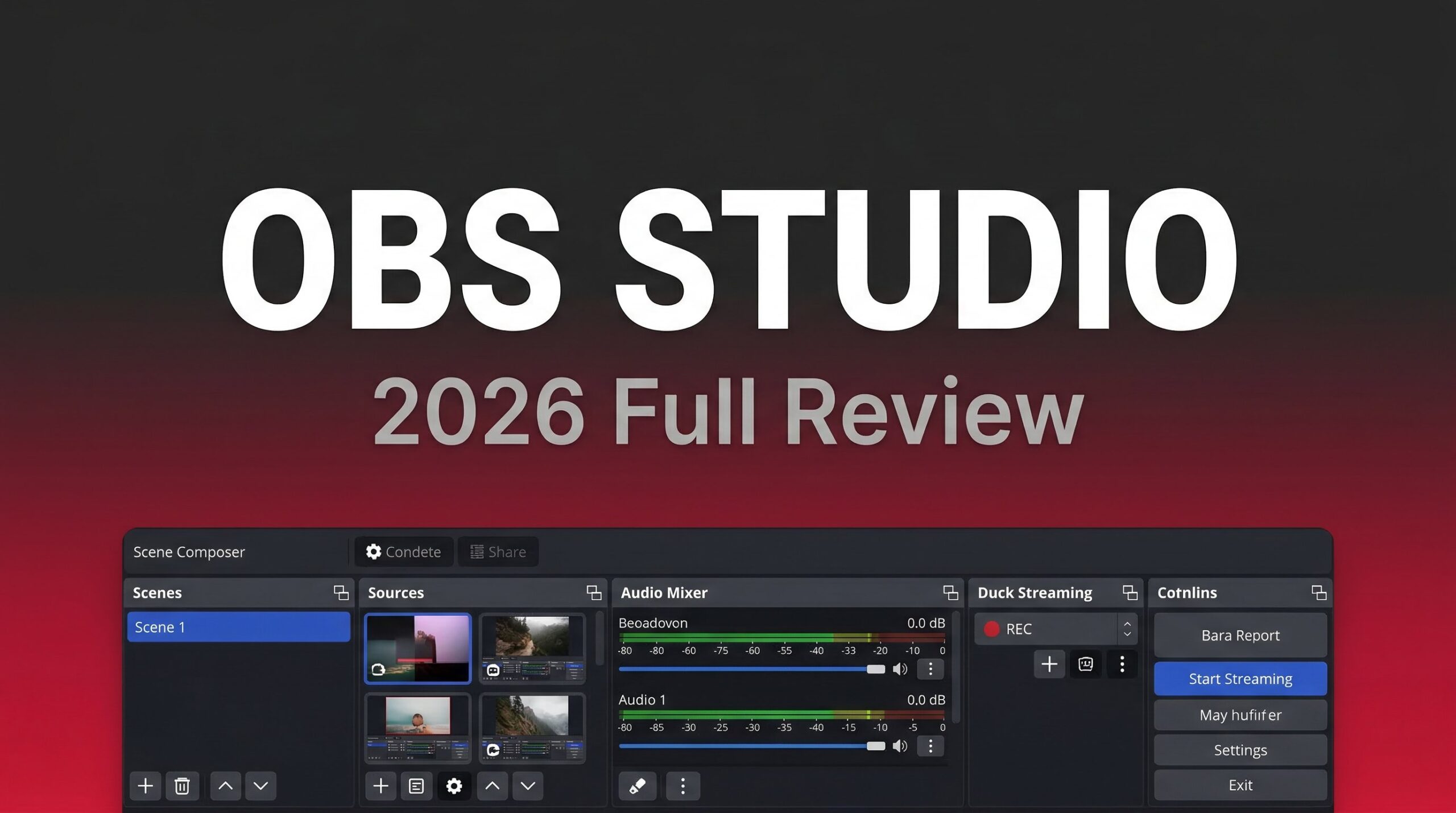
The Free Powerhouse That Changed Live Streaming Forever
While platforms like Restream and StreamYard charge $20-90/month for live streaming, there’s a completely free, open-source tool that powers broadcasts for everyone from bedroom streamers to major esports tournaments: OBS Studio (Open Broadcaster Software). No subscriptions, no feature limits, no watermarks—just pure broadcasting power at your fingertips.
But here’s the catch: OBS Studio isn’t “easy.” It’s powerful, customizable, and infinitely flexible—which means it has a learning curve that scares away beginners. In this comprehensive 2026 review, we’ll break down what OBS Studio actually does, who it’s for, how it compares to paid alternatives, and whether the time investment is worth the money you’ll save.
Download OBS Studio Free (Windows, Mac, Linux) →
What Is OBS Studio? Core Features Deep-Dive
OBS Studio is a free, open-source desktop application for video recording and live streaming. Unlike browser-based tools like StreamYard and Restream, OBS runs locally on your computer, giving you complete control over every aspect of your broadcast. It’s been the industry standard for Twitch streamers, YouTube creators, and professional broadcasters since its release in 2012.
High-Performance Real-Time Video/Audio Capture
OBS Studio captures video and audio directly from your sources with minimal latency:
- Multiple source types – Window captures, full-screen displays, webcams, capture cards, images, text, browser sources
- Unlimited scenes – Create as many scene compositions as you need
- Instant scene switching – Hotkey between different layouts mid-stream
- Custom transitions – Fade, cut, swipe, or use custom stinger videos
- GPU-based game capture – Optimized for gaming with minimal performance impact
Video Quality: From 720p to 8K and Beyond
Unlike subscription services that cap streaming quality, OBS Studio supports:
- Any resolution your hardware can handle – 720p, 1080p, 4K, 8K, or custom resolutions
- Multiple encoder options – x264 (CPU), NVENC (NVIDIA GPU), QuickSync (Intel), AMD VCE
- Bitrate control – No artificial limits; stream at whatever bitrate your internet and platform support
- 60 FPS or higher – Essential for gaming and fast-motion content
Important note: While OBS Studio itself has no limits, streaming platforms like YouTube and Twitch have their own quality restrictions (typically 1080p60 for most users).
Intuitive Audio Mixer with Professional Filters
OBS’s audio controls rival professional production software:
- Per-source volume control – Independent mixing for each audio source
- Audio filters – Noise suppression, noise gate, compressor, limiter, expander
- VST plugin support – Use third-party audio plugins like AutoTune or vocal processors
- Audio monitoring – Hear exactly what your stream/recording will sound like
- Multiple audio tracks – Record separate tracks for easier post-production editing
Modular Dock UI: Customize Everything
OBS Studio’s interface is fully customizable:
- Rearrange panels – Position sources, mixer, scenes exactly where you want them
- Pop-out docks – Move panels to separate windows or monitors
- Multiple themes – Light, dark, or custom community themes
- Studio Mode – Preview scenes before pushing them live
- Multiview – Monitor up to 8 scenes simultaneously for easy cueing
Cross-Platform Compatibility
OBS Studio runs on:
- Windows (10 and 11)
- macOS (Intel and Apple Silicon)
- Linux (multiple distributions)
Your scenes, sources, and settings can be exported and imported across platforms, making it easy to switch computers.
Powerful Plugin Ecosystem
OBS Studio’s open-source nature has spawned a massive plugin ecosystem:
- StreamFX – Advanced visual effects and filters
- Move Transition – Smooth animated transitions between scenes
- Source Record – Record individual sources separately
- Virtual Camera – Use OBS output as webcam input for Zoom, Teams, etc.
- NDI Support – Network video input/output for multi-camera setups
The community constantly develops new plugins, extending OBS’s capabilities far beyond its core features.
OBS Studio Pricing: Completely Free Forever
Here’s the simple truth: OBS Studio costs $0. No subscriptions, no “pro” tiers, no feature paywalls. The entire project is funded by donations and corporate sponsors (including major names like Twitch, YouTube, and Facebook Gaming).
What “Free” Really Means:
- ✅ No watermarks – Ever
- ✅ No time limits – Stream/record as long as you want
- ✅ All features included – Nothing locked behind paywalls
- ✅ Unlimited scenes and sources – Create as many as your hardware allows
- ✅ Commercial use allowed – Use it for your business without licensing fees
- ✅ Open-source – Transparent code, community-driven development
The Hidden Costs (What You Actually Pay)
While OBS Studio software is free, there are “costs” to consider:
- Time investment – Expect 5-10 hours to become proficient (vs. 30 minutes for StreamYard)
- Hardware requirements – OBS demands more from your computer than browser-based tools
- Technical knowledge – You’ll need to understand concepts like bitrate, keyframes, and encoding
- No customer support – Rely on community forums and YouTube tutorials
For many creators, saving $200-500/year on subscription fees makes the learning curve worthwhile.
OBS Studio Pros and Cons: The Unvarnished Truth
✅ Pros (Why Millions Use OBS)
- 100% free and open-source – No subscriptions, ever
- Unlimited customization – Build any broadcast setup you can imagine
- Professional-grade quality – Used by major broadcasters and esports organizations
- Cross-platform support – Works on Windows, Mac, and Linux
- Massive plugin ecosystem – Extend functionality infinitely
- No artificial limits – Stream/record at any quality your hardware supports
- Active community – Constant updates, bug fixes, and security patches
- Multistreaming capable – Use plugins or services like Restream for simultaneous broadcasting
❌ Cons (Real Challenges to Consider)
- Steep learning curve – Not beginner-friendly; expect hours of YouTube tutorials
- Heavy hardware demands – Can slow down older computers significantly
- No built-in multistreaming – Requires third-party services or complex manual setup
- Guest management is complex – Unlike StreamYard’s simple links, you’ll need separate tools
- Zero official customer support – Rely on forums, Discord, and community goodwill
- Setup takes time – Configuring optimal settings requires trial and error
- Frequent crashes if misconfigured – Incorrect settings can cause instability
User Feedback Summary
“It isn’t the best, but it’s free, open-source, cross-platform, and usually works really well. Since it is open-source, there are hardly any issues with it. The open-source community works really hard to keep it updated, secure, and bug-free.” – Pavan K, 2+ years user
“OBS Studio is free and has every feature when compared to other screen recording software. But it can be challenging for beginners to set up and use efficiently, and it can be resource-intensive.” – Verified TrustRadius reviewer
The consensus: OBS Studio is incredibly powerful and free, but you’re trading money for time and technical complexity.
OBS Studio vs StreamYard vs Restream: The Ultimate Comparison
| Feature | OBS Studio | Restream | StreamYard |
|---|---|---|---|
| Price | Free forever | $0-$199/month | $0-$299/month |
| Installation | Desktop app required | Browser-based | Browser-based |
| Learning Curve | ⭐⭐ (Steep) | ⭐⭐⭐⭐⭐ (Easy) | ⭐⭐⭐⭐⭐ (Easy) |
| Video Quality | Unlimited (8K+) | 720p-1080p | 720p-4K local |
| Multistreaming | Manual or via plugins | 2-8 destinations | 1-10 destinations |
| Guest Management | ❌ Complex | ✅ Good | ✅ Best-in-class |
| Customization | ✅ Unlimited | Moderate | Limited |
| Hardware Demands | High | Low | Low |
| Support | Community only | Email + Priority | Email + Priority |
| Best For | Technical power users | Multi-platform reach | Ease of use + quality |
Choose OBS Studio if: You’re technical, want unlimited control, need advanced features, and are willing to invest time learning.
Choose Restream if: You want affordable multistreaming with minimal setup and don’t need advanced customization.
Choose StreamYard if: You prioritize simplicity, guest management, and high-quality recordings over cost savings.
Real-World Use Cases: Who Should Use OBS Studio?
✅ Perfect For:
- Twitch and YouTube gamers – Industry standard for game streaming
- Technical creators – Those comfortable with encoders, bitrates, and scene building
- Budget-conscious professionals – Save $200-500/year vs paid alternatives
- Advanced productions – Multi-camera setups, complex scene transitions, custom overlays
- Linux users – One of the few professional streaming tools for Linux
- Virtual camera needs – Use OBS output in Zoom, Teams, Google Meet
❌ Not Ideal For:
- Complete beginners – Expect significant frustration during setup
- Interview/guest-focused shows – Managing remote guests is complex
- Those needing quick results – Setup and learning take serious time
- Non-technical creators – If terms like “x264 encoder” sound scary, start with StreamYard
How to Get Started with OBS Studio (Realistic Timeline)
Initial Setup (1-2 hours)
- Download and install from obsproject.com
- Run the Auto-Configuration Wizard – OBS will test your hardware and suggest optimal settings
- Add your first sources – Webcam, microphone, and screen capture
- Configure streaming settings – Enter stream key from YouTube, Twitch, etc.
Intermediate Proficiency (5-10 hours)
- Build multiple scenes – Starting soon, gameplay, BRB, ending screens
- Add filters to sources – Chroma key (green screen), color correction, audio processing
- Create custom transitions – Fade effects or custom stinger videos
- Set up hotkeys – Quick scene switching, mute controls, recording start/stop
- Install essential plugins – Start with Virtual Camera and Move Transition
Advanced Mastery (20+ hours)
- Optimize encoding settings – Balance quality, performance, and bitrate
- Configure multi-camera setups – Use NDI or multiple capture devices
- Build complex scene hierarchies – Nested scenes for modular production
- Master audio routing – Separate tracks for music, mic, game audio
Bottom line: Plan for at least 5-10 hours to become comfortable with OBS Studio. The investment pays off if you’re committed to streaming long-term.
OBS Studio + Restream: The Best of Both Worlds?
Here’s a pro strategy many creators use: Combine OBS Studio’s power with Restream’s multistreaming convenience.
How it works:
- Build your broadcast in OBS Studio (unlimited customization)
- Stream to Restream’s RTMP endpoint (one destination in OBS)
- Restream distributes your feed to 2-8 platforms simultaneously
Benefits:
- OBS’s unlimited scene control and quality
- Restream’s easy multistreaming and unified chat
- Save money vs StreamYard ($16-39/month vs $45-89/month)
- Professional production without sacrificing platform reach
This hybrid approach is popular among serious creators who want control without manual RTMP configuration for every platform.
Final Verdict: Is OBS Studio Worth the Learning Curve in 2026?
Rating: ⭐⭐⭐⭐½ (4.5/5 stars)
OBS Studio is the most powerful, flexible, and cost-effective streaming solution available in 2026—bar none. For technical creators, gamers, and anyone willing to invest time learning, it’s unbeatable. The fact that it’s completely free, open-source, and has no artificial limitations makes it extraordinary value.
However, the learning curve is real. Beginners will struggle with setup, and non-technical creators may find themselves spending more time troubleshooting than creating content. If your priority is “going live in 5 minutes,” paid tools like StreamYard or Restream are better choices.
Bottom line: OBS Studio is worth it if:
- You’re technical or willing to learn
- You plan to stream/record regularly (making the time investment worthwhile)
- You want professional-grade control without subscription fees
- You’re okay with community support instead of dedicated customer service
For serious content creators who want to save $200-500/year while maintaining maximum control, OBS Studio is the clear winner.
Download OBS Studio Free (Windows, Mac, Linux) →
Frequently Asked Questions
Is OBS Studio really free?
Yes, completely free. OBS Studio is open-source software with no subscriptions, watermarks, time limits, or feature restrictions. It will remain free forever.
Is OBS Studio good for beginners?
Honestly, no. OBS has a steep learning curve and requires technical knowledge. Beginners should consider starting with StreamYard or Restream, then graduating to OBS once comfortable with streaming basics.
Does OBS Studio slow down your computer?
It can. OBS Studio uses significant CPU and GPU resources, especially when streaming high-quality video. Modern computers (2020+) typically handle it fine, but older machines may struggle. The Auto-Configuration Wizard helps optimize settings for your hardware.
Can OBS Studio multistream to multiple platforms?
Not natively. OBS streams to one destination at a time. However, you can use plugins or stream to a service like Restream, which then distributes to multiple platforms.
What’s better: OBS Studio or Streamlabs OBS?
OBS Studio is generally more stable and lightweight. Streamlabs OBS (now Streamlabs Desktop) adds built-in widgets and alerts but uses more resources. Most serious streamers prefer vanilla OBS Studio.
Can I use OBS Studio for Zoom calls?
Yes! OBS Studio includes a Virtual Camera feature that lets you use your OBS output as a webcam input for Zoom, Microsoft Teams, Google Meet, and other video conferencing tools.