What Is Type Studio? (Editing Video Like You Edit Text)
When it comes to Type Studio Review 2026 pricing, here’s a wild idea: what if you could edit video the same way you edit a Google Doc? Instead of dragging clips on a timeline, scrubbing for the exact frame, and splitting audio tracks, you just… delete words from a transcript. The video updates automatically. Sounds too good to be true, right?
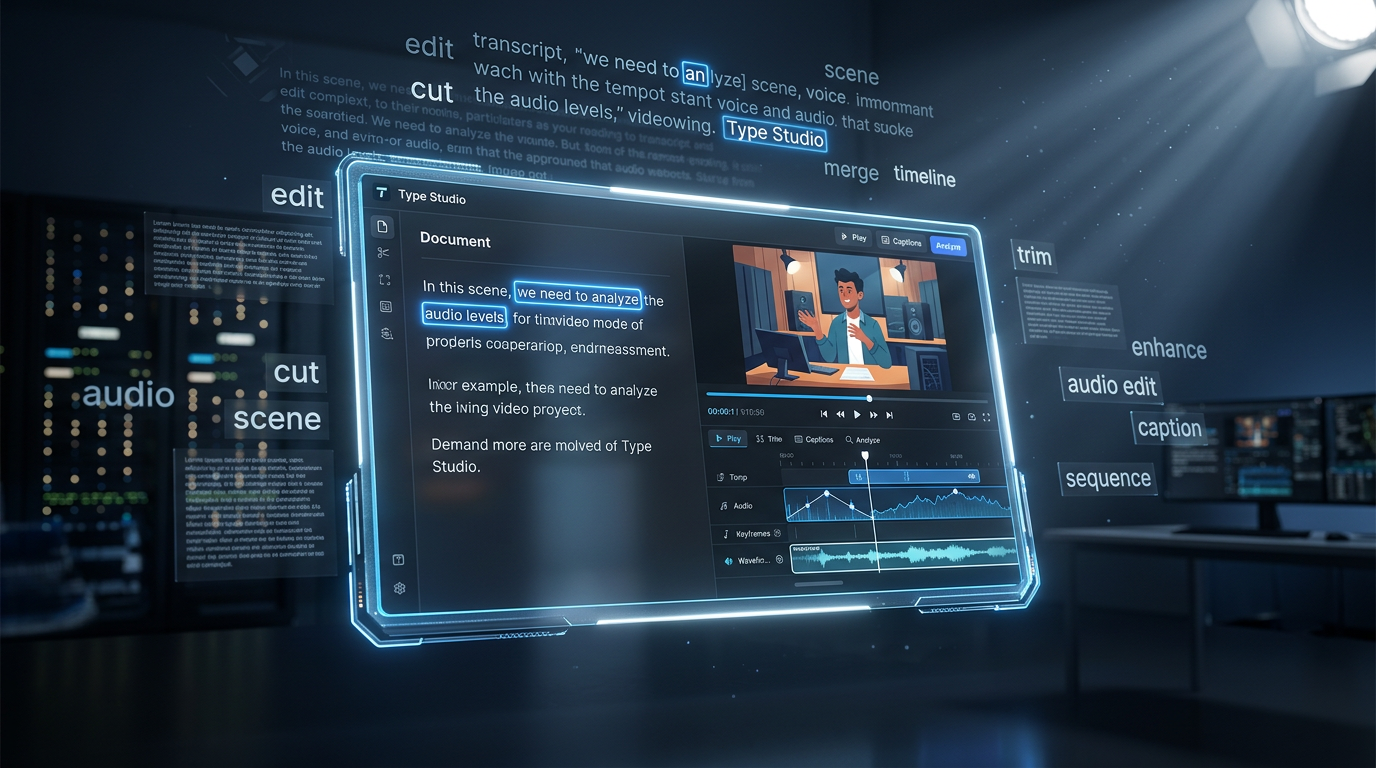
That’s exactly what Type Studio does. It’s a text-based video editor that transcribes your video into text, and then lets you edit the video by editing the transcript. Want to cut out a 30-second ramble? Select the text and hit delete. Need to rearrange sections? Copy, paste, done. It’s video editing for people who hate traditional video editing.
Type Studio is built for podcasters, YouTubers, marketers, and anyone who creates interview or talking-head content. If your videos involve people speaking (as opposed to action sequences or visual effects), this tool can save you literal hours of editing time. The AI transcription is solid, the interface is dead simple, and you don’t need any video editing experience to use it.
But is it powerful enough for serious creators? Can it replace tools like Premiere Pro or Final Cut? And more importantly, is it worth the money? Let’s break it down.
Core Features: What Type Studio Actually Does
Automatic AI Transcription
The foundation of Type Studio is its AI transcription engine. You upload a video, and within minutes, Type Studio generates a text transcript of everything that was said. The accuracy is pretty impressive—I’d say 90-95% for clean audio with minimal background noise.
Once you have the transcript, that’s your editing interface. Every word you see corresponds to a moment in the video. This makes it incredibly easy to scan through an hour-long interview and find specific sections without watching the whole thing.
Text-Based Video Editing
This is the killer feature. Instead of working with a traditional timeline, you edit the video by editing the transcript. Here’s how it works:
- Want to cut something? Select the text and delete it. The video updates automatically.
- Need to rearrange sections? Copy and paste text blocks. The video follows.
- Looking for a specific moment? Use Ctrl+F to search the transcript. No more scrubbing through footage.
If you’ve ever used Descript, this will feel familiar. But Type Studio is simpler and more focused—less bells and whistles, but way easier to learn.
Auto-Captions and Subtitles
Since Type Studio already has your transcript, adding captions is effortless. You can customize the font, color, size, position, and animation style. The captions sync perfectly because they’re generated from the same transcript you’re editing.
This is huge for social media content where 85% of people watch without sound. You’re not manually typing captions or paying for a separate caption tool—it’s all built in.
Multi-Language Support
Type Studio supports transcription and captions in dozens of languages. If you’re creating content for international audiences, you can transcribe in one language and add captions in another. This opens up your content to way more people without needing a translation team.
Content Repurposing Tools
Type Studio makes it easy to chop long videos into shorter clips. You can select sections of the transcript, create clips, and export them individually. This is perfect for podcasters who want to pull highlights for social media or course creators who need to break long lessons into smaller chunks.
You can export in different aspect ratios (16:9, 9:16, 1:1) optimized for YouTube, TikTok, Instagram, and LinkedIn. No need to re-edit for each platform.
Collaboration Features
If you’re working with a team, Type Studio has collaboration built in. Multiple people can edit the same project, leave comments, and suggest changes. It’s like Google Docs for video editing—everyone can work simultaneously without version control nightmares.
Background Removal and Visual Effects
While Type Studio isn’t trying to be a full editing suite, it does have some basic visual tools. You can remove backgrounds (think green screen without the green screen), add overlays, insert images, and apply simple transitions. It’s not Premiere Pro, but it’s enough for most talking-head content.
Pricing: What You’ll Actually Pay
Type Studio has a freemium model, which is great if you want to test it out before committing. Here’s the breakdown as of 2026: This is why Type Studio Review 2026 pricing stands out in the market.
| Plan | Price | Video Minutes/Month | Key Features |
|---|---|---|---|
| Free | $0 | 10 minutes | Basic editing, watermark on exports, limited features |
| Pro | $14/month | 120 minutes | No watermark, full features, priority transcription |
| Team | $28/month | 300 minutes | All Pro features + team collaboration, shared workspace |
| Enterprise | Custom | Custom | White-label, API access, dedicated support |
Note: Pricing may vary based on annual vs. monthly billing. Annual plans typically offer ~20% savings.
Is it worth it? The free plan is perfect for testing the workflow. If you like it, $14/month for Pro is stupid cheap compared to hiring an editor or spending 10+ hours per week manually editing. The 120 minutes per month is enough for most solo creators making weekly content.
The Team plan makes sense if you’re managing multiple clients or have a content team. The shared workspace and collaboration features are legitimately useful and worth the extra cost.
Pros & Cons: The Good, The Bad, and The Text-Based
What I Love About Type Studio
1. Insanely Fast Editing
Editing by text is 5-10x faster than traditional timeline editing. Once you get used to it, you’ll never want to go back. What used to take 2 hours now takes 20 minutes.
2. No Learning Curve
If you can use Microsoft Word, you can use Type Studio. There’s no complicated interface to learn, no keyboard shortcuts to memorize. You just read and delete text. It’s that simple.
3. Perfect for Interview Content
If your videos are interviews, podcasts, testimonials, or any talking-head content, Type Studio is a game-changer. You can scan transcripts for the best quotes, cut out filler words, and rearrange sections effortlessly.
4. Built-In Captions Save Time and Money
Not having to use a separate caption tool or manually type captions is huge. The captions are accurate, customizable, and sync perfectly. This alone saves $10-20/month on other tools.
5. Collaboration Is Actually Good
Unlike most video tools where collaboration is clunky, Type Studio’s Google Docs-style workflow actually works. Your team can edit simultaneously without stepping on each other’s toes.
What’s Not So Great
1. Not Built for Complex Editing
If you need advanced color grading, multi-track audio mixing, or Hollywood-level effects, Type Studio isn’t for you. It’s designed for simple, content-focused editing, not cinematic masterpieces.
2. Transcription Quality Depends on Audio
If your audio has background noise, heavy accents, or lots of crosstalk, the transcription will struggle. Clean audio is essential for Type Studio to work well. Garbage in, garbage out.
3. Limited Creative Control
You can’t precisely time cuts to the frame, manually adjust audio levels with precision, or do super detailed tweaks. You’re working at the word level, not the frame level. For most people, this is fine. For perfectionists, it’s limiting.
4. Free Plan Has a Watermark
The watermark on the free plan is annoying if you’re creating professional content. You’ll need to upgrade to Pro pretty quickly if you’re serious about using the tool.
5. Export Times Can Be Slow
Some users report slow export times, especially for longer videos. This isn’t a deal-breaker, but if you’re working on deadline, it can be frustrating.
Type Studio vs. The Competition
How does Type Studio stack up against other text-based and video editing tools? Let’s compare:
| Tool | Starting Price | Best For | Standout Feature |
|---|---|---|---|
| Type Studio | $14/month | Simple, fast text-based editing | Dead-simple interface, no learning curve |
| Descript | $24/month | All-in-one editing powerhouse | Overdub (AI voice cloning), advanced editing |
| Riverside | $19/month | High-quality remote recording + editing | 4K uncompressed recording, studio quality |
| Veed.io | $12/month | Social media video editing | Browser-based, tons of templates |
When to Choose Type Studio:You want the fastest, simplest text-based editing. You don’t need advanced features—just clean, quick edits of talking-head content. This is why Type Studio Review 2026 pricing stands out in the market.
When to Choose Descript:You need more power—AI voice cloning, advanced audio editing, screen recording. You’re willing to pay more and deal with a steeper learning curve for extra features. For more insights, see our Waymark AI Video Tool Review 2026: Script-to-TV-Ad in Minutes.
When to Choose Riverside: Recording quality matters more than editing speed. You’re doing remote interviews and need studio-quality 4K video straight from the recording.
When to Choose Veed.io: You need a browser-based tool with lots of templates and visual effects for social media content. You’re prioritizing style over transcript-based workflow.
Bottom line? Type Studio is the simplest and fastest text-based editor. Descript is more powerful but more complex. Riverside is about recording quality. Veed.io is about templates and effects.
Real-World Use Cases: Who Actually Benefits?
Use Case 1: The Podcast Editor
You edit a weekly podcast. Every episode is 60-90 minutes, and you need to remove filler words, long pauses, tangents, and technical issues. Traditionally, this takes 3-4 hours per episode.
With Type Studio, you upload the episode, scan the transcript, and delete the text you don’t want. Filler words like “um” and “uh”? Search and delete. A 5-minute tangent about someone’s cat? Select and delete. What used to take 3 hours now takes 30 minutes.
Pro tip: Use the search function to find and delete all instances of “um” and “like” at once. This alone cleans up 80% of the editing work.
Use Case 2: The YouTuber Who Hates Editing
You love creating content but hate spending hours in editing software. You film talking-head videos—tutorials, vlogs, commentary—and you just want to cut out the boring parts and publish fast.
Type Studio lets you edit without learning video software. You read the transcript, delete the parts where you stumbled over words, rearrange sections that make more sense in a different order, and export. No timeline, no complicated interface. Just text.
Pro tip: Create a “highlight reel” by copying the best 10-20 seconds from your video into a new project. Export as a 9:16 vertical video for TikTok and Instagram Reels.
Use Case 3: The Course Creator
You’re building an online course with 50+ video lessons. Each lesson is 10-20 minutes, and you need to edit out mistakes, add captions for accessibility, and break long lessons into shorter modules.
Type Studio’s transcript editing makes it easy to scan lessons, identify natural break points, and split them into shorter segments. The auto-captioning ensures your course is accessible. And the fast editing workflow means you can finish the whole course in days instead of weeks.
Pro tip: Use the collaboration feature to have a VA or assistant do the first pass of editing. They delete obvious mistakes and filler words, then you review and finalize. This cuts your editing time in half.
Use Case 4: The Social Media Manager
You manage social media for a brand. You’ve got webinar recordings, customer testimonials, and executive interviews that need to be repurposed into bite-sized social clips with captions.
Type Studio lets you quickly scan transcripts for quotable moments, create clips, add branded captions, and export for multiple platforms. You can turn a 1-hour webinar into 10 social clips in under an hour.
Pro tip: Search the transcript for keywords like “secret,” “mistake,” “surprised,” and “didn’t expect.” These words often signal viral-worthy moments that make great social clips.
Expert Tips: Getting the Most Out of Type Studio
Tip 1: Record Clean Audio or You’ll Regret It
Type Studio’s power comes from accurate transcription. If your audio is noisy, echoey, or full of crosstalk, the transcript will be a mess and you’ll spend more time fixing it than you save. Invest in a decent mic.
Tip 2: Use Search to Speed Up Editing
The Ctrl+F search function is your best friend. Need to find every time you mentioned a competitor’s name? Search for it. Want to delete all “ums”? Search and delete in bulk. This alone saves 20-30 minutes per video.
Tip 3: Create Templates for Consistent Branding
Set up caption styles, intros, outros, and branding elements as templates. Then every new video starts with your branding already applied. No more manually adding your logo to every video.
Tip 4: Use Speaker Labels for Multi-Person Videos
If your video has multiple speakers (interviews, panel discussions), Type Studio can label different speakers in the transcript. This makes it way easier to find and edit specific people’s contributions.
Tip 5: Export in Multiple Formats at Once
Instead of exporting once and realizing you need a different aspect ratio, export for all your platforms at once (16:9 for YouTube, 9:16 for TikTok, 1:1 for Instagram). Save yourself the headache of re-exporting later.
Tip 6: Collaborate to Split the Workload
If you’re on the Team plan, use the collaboration features. Have one person do the rough cut (delete filler words and mistakes), another add captions and effects, and a third do final review. Parallel workflows save hours.
Tip 7: Don’t Use It for B-Roll Heavy Content
Type Studio shines for talking-head content. If your video is full of b-roll, visual effects, or complex cuts, you’ll hit its limitations fast. Use it for what it’s good at—editing speech.
The Verdict: Should You Use Type Studio?
Here’s my honest take: Type Studio is a must-try for anyone editing talking-head content who values speed over complexity.
If you’re a podcaster, YouTuber, course creator, or marketer editing interview-style videos, Type Studio will save you literal hours per week. The text-based workflow is insanely fast once you get used to it, and the built-in captions and multi-format export are huge bonuses.
But if you need advanced editing features—color grading, complex audio mixing, cinematic effects—Type Studio isn’t built for that. It’s a scalpel, not a Swiss Army knife. It does one thing really well: fast, simple editing of speech-based content.
Final Rating: 4.5/5 Stars
Who It’s Best For:
- Podcasters who need to edit hours of content every week
- YouTubers making talking-head videos who hate traditional editing
- Course creators with dozens of lessons to edit and caption
- Social media managers repurposing long videos into short clips
- Anyone who values speed and simplicity over advanced features
Who Should Skip It:
- Filmmakers needing advanced color grading and effects
- Creators making highly visual content with lots of b-roll
- Anyone recording in noisy environments with poor audio quality
- Editors who need frame-by-frame precision control
Bottom line? Start with the free plan and edit one video. If the text-based workflow clicks for you, you’ll wonder how you ever edited the old way. If it feels limiting, stick with traditional tools. But for most people editing speech-based content, Type Studio is a game-changer. For more insights, see our Best AI Video Tools for Product Demos in 2026: Showcase, Convert & Sell More.
Ready to try Type Studio? Grab the free plan and edit a video today. You’ll know within 10 minutes if this workflow is for you. And if it is? Welcome to the future of video editing—where you edit video like you edit text.