The Video Editor That Actually Understands What You’re Trying to Say
When it comes to Visla Review 2026 pricing, ever tried explaining to a video editor exactly what you want, only to get back something completely different? Or worse—spent hours editing a simple video yourself, wrestling with timelines, trimming clips, and syncing audio, all while thinking “there has to be a better way.”
Here’s the reality: traditional video editing is a time sink. For every 1 minute of finished video, most people spend 30-60 minutes editing. That’s fine if you’re a professional editor working on a feature film. But if you’re a marketer who needs to turn team meeting recordings into social clips, or a training manager who needs to create educational content weekly, that ratio is absolutely brutal.
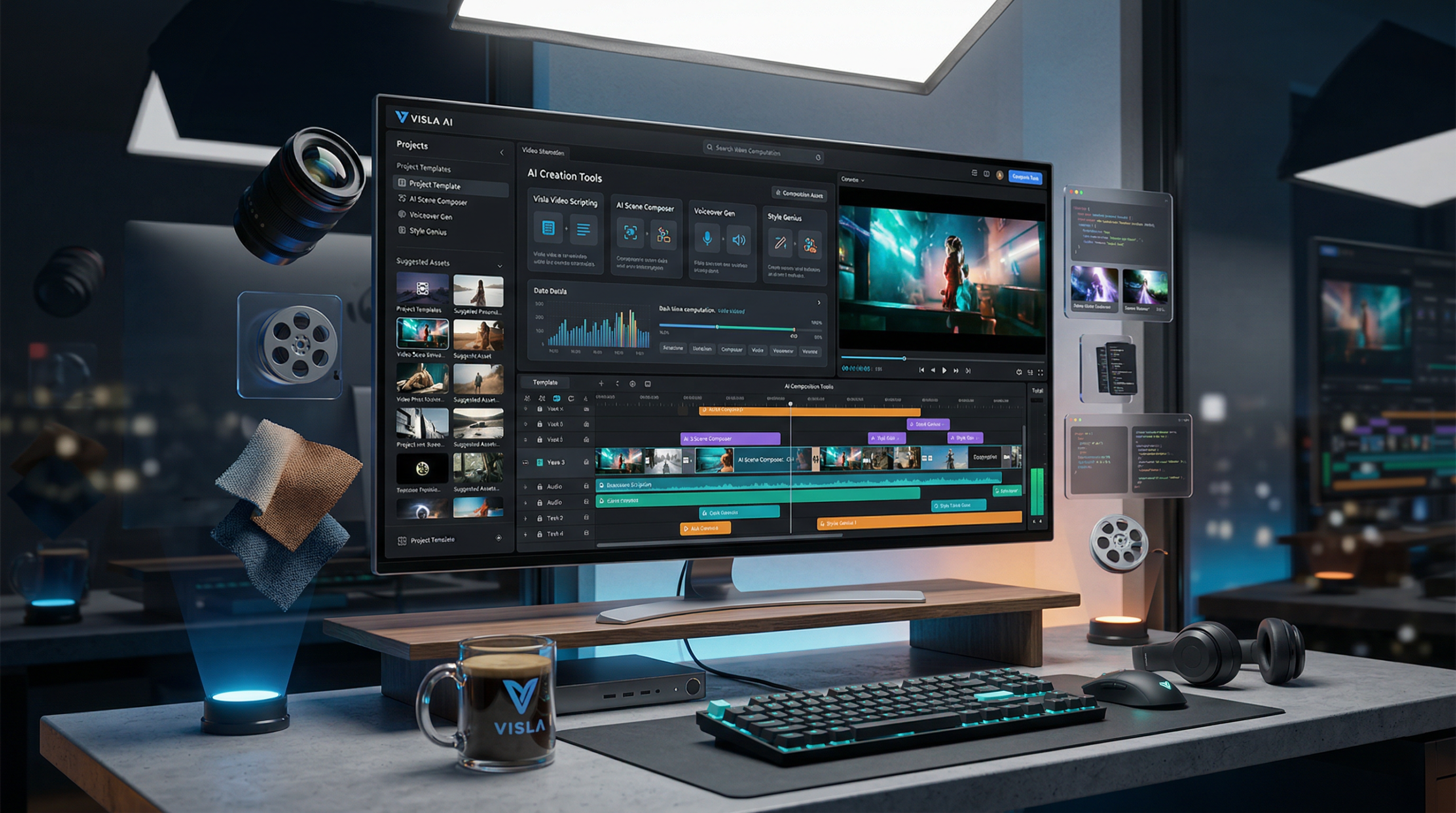
Visla is an AI-powered video creation and editing platform designed to fix this exact problem. Instead of manually cutting, trimming, and arranging clips, you can feed Visla a script, URL, or recording, and it generates a polished video automatically. It handles transcription, editing, subtitles, voiceovers, and even pulls in relevant stock footage.
But does it actually save time, or is it just another overpromising AI tool? Let’s find out.
What Visla Actually Does (And Why It’s Different)
Visla isn’t trying to be the next Premiere Pro or Final Cut. It’s designed for business teams who need to create professional videos quickly without becoming professional editors. Here’s what sets it apart:
1. Text-to-Video Generation
Write a script or paste an article, blog post, or URL. Visla analyzes the content, generates a video structure, pulls relevant stock footage or AI-generated visuals, adds voiceover (AI or your own), and creates a finished video. You can customize everything afterward, but the AI gives you a solid starting point in minutes instead of hours.
2. Recording to Edited Video
Record a meeting, presentation, or interview. Visla automatically transcribes it, identifies key moments, removes filler words and pauses, and creates clips optimized for different platforms (LinkedIn, YouTube, Instagram, etc.). You can edit the video by editing the transcript—cut a sentence, and the video cuts automatically. It’s text-based editing, which is way faster than traditional timeline editing.
3. AI-Powered Editing Features
Visla includes a suite of AI tools that automate tedious editing tasks:
- Auto Subtitles: Generates accurate captions with customizable styling
- Auto Highlight Detection: Identifies the most engaging moments in long recordings
- Scene Detection: Automatically splits footage into logical scenes
- Voice Cloning: Create AI voiceovers that sound like you or choose from a library of voices
- Stock Media Integration: Search and insert millions of stock videos and images directly in the editor
- Brand Templates: Save brand colors, fonts, and logos for consistent video styling
Key Features
- Text-to-Video: Generate videos from scripts, URLs, or articles
- Text-Based Editing: Edit videos by editing transcripts—no timeline needed
- AI Voiceovers: Choose from 50+ AI voices or clone your own voice
- Auto Subtitles: Generate accurate captions with 100+ language support
- Stock Media Library: Access millions of royalty-free videos and images
- Screen Recording: Record your screen with webcam overlay
- Collaboration Tools: Real-time collaboration, comments, and version control
- Multi-Platform Export: Export videos optimized for YouTube, Instagram, LinkedIn, TikTok, etc.
- Brand Kit: Store brand assets for consistent styling across videos
- Analytics: Track video performance and engagement metrics
Pricing Breakdown: What You’ll Actually Pay
Visla uses a credit-based pricing system. Credits are consumed based on the features you use (AI generation, voiceovers, exports, etc.). Here’s the breakdown as of March 2026: This is why Visla Review 2026 pricing stands out in the market.
| Plan | Price | Credits/Month | Key Features |
|---|---|---|---|
| Free | $0 | 50 credits | Basic editing, watermark, 720p export, 5 videos/month |
| Pro | $29/month | 300 credits | No watermark, 1080p export, AI voiceovers, auto subtitles, brand kit |
| Business | $79/month | 1,000 credits | Team collaboration, priority support, advanced analytics, custom branding |
| Enterprise | Custom pricing | Custom credits | Unlimited seats, dedicated account manager, SSO, API access, SLA |
Credit Usage Examples:
- Generate a 2-minute video from text: ~20 credits
- Transcribe and edit a 10-minute recording: ~30 credits
- AI voiceover (per minute): ~5 credits
- Export 1080p video: ~10 credits
Note: You can purchase additional credits if you run out mid-month. Pro and Business plans include priority processing, which speeds up AI generation significantly.
The Good, The Bad, and The “Huh, That’s Interesting”
Pros
- Incredibly Intuitive: The interface is clean and user-friendly—no steep learning curve
- Text-Based Editing is a Game-Changer: Editing by transcript is way faster than timeline editing for most use cases
- Collaboration Features are Excellent: Real-time collaboration, comments, and version control make team workflows smooth
- Stock Media Integration: Having millions of stock assets built-in saves time and money
- Auto Subtitles Work Well: Accuracy is high, and customization options are solid
- Fast Turnaround: AI generation is quick—most videos are ready in 2-5 minutes
- Multi-Platform Optimization: Export presets for different social platforms are convenient
Cons
- Credit System Can Be Confusing: It’s hard to predict how many credits a project will use until you’re halfway through
- Limited Advanced Editing: If you need complex effects, transitions, or color grading, you’ll still need Premiere or DaVinci
- AI-Generated Videos Aren’t Perfect: The AI makes decent choices, but you’ll usually need to tweak the output
- Voice Cloning Quality Varies: Some voices sound great, others sound robotic
- Free Plan is Very Limited: The watermark and 720p export make the free plan mostly a trial
- Not Ideal for Highly Creative Projects: This is a tool for efficiency, not for artistic video production
How Does Visla Compare to Competitors?
| Feature | Visla | Descript | Pictory | CapCut |
|---|---|---|---|---|
| Starting Price | $29/month | $24/month | $23/month | Free |
| Text-to-Video | ✅ Excellent | ❌ No | ✅ Excellent | ❌ No |
| Text-Based Editing | ✅ Yes | ✅ Yes (Best-in-class) | ✅ Yes | ❌ No |
| AI Voiceovers | ✅ Yes | ✅ Yes (Overdub) | ✅ Yes | ✅ Yes |
| Collaboration Tools | ⭐⭐⭐⭐⭐ | ⭐⭐⭐⭐⭐ | ⭐⭐⭐ | ⭐⭐ |
| Stock Media Library | ✅ Extensive | ❌ Limited | ✅ Extensive | ✅ Good |
| Best For | Business teams, marketing content | Podcasters, content creators | Social media marketers | Casual creators, TikTok/Reels |
The Verdict: Visla excels at business and team collaboration with strong text-to-video features. Descript is better for podcast and audio-first content with superior transcription and Overdub. Pictory is more affordable for social media-focused creators. CapCut is best for casual, social-first editing with tons of effects.
Real-World Use Cases: Who’s Actually Using This?
Marketing Team Creating Weekly Social Content
Scenario: A SaaS marketing team needs to create 5-10 social videos per week from blog posts, webinars, and customer testimonials.
How Visla Helps: The team pastes blog post URLs into Visla, which generates videos with relevant stock footage, adds AI voiceovers, and creates platform-specific versions (LinkedIn square format, Instagram Reels vertical format, etc.). They review and tweak in 10-15 minutes per video instead of spending hours editing manually.
Result: 80% reduction in video production time, more consistent posting schedule, higher engagement on social channels.
Corporate Training Manager Creating Learning Content
Scenario: A training manager needs to convert PowerPoint presentations and recorded training sessions into engaging video modules for a learning management system.
How Visla Helps:Upload presentation slides or screen recordings. Visla automatically generates subtitles, removes filler words, identifies key sections, and creates chapter markers. The manager adds brand styling from the brand kit and exports videos optimized for the LMS. This is why Visla Review 2026 pricing stands out in the market. For more insights, see our Waymark AI Video Tool Review 2026: Script-to-TV-Ad in Minutes.
Result: Training content production scales from 2 courses per month to 8, with consistent quality and branding.
Sales Team Creating Personalized Demo Videos
Scenario: A sales team needs to send personalized product demos to prospects, highlighting features relevant to each prospect’s industry.
How Visla Helps: The team records one comprehensive demo. Using text-based editing, they create multiple variations by cutting and rearranging sections based on prospect needs. Add industry-specific intro slides from the brand kit, and export personalized videos in minutes.
Result: 45% increase in demo video engagement, faster sales cycles, higher conversion rates.
Expert Tips: How to Get the Most Out of Visla
1. Start With a Solid Script
The better your input, the better the output. If you’re using text-to-video, write a clear, structured script with headings and key points. The AI will use these to determine scene breaks and visual choices.
2. Use the Brand Kit from Day One
Upload your logo, brand colors, and fonts immediately. This ensures every video you create is on-brand without manual styling. It’s a huge time-saver for teams.
3. Edit the Transcript First, Then Fine-Tune
When working with recordings, edit the transcript to remove filler words, pauses, and off-topic sections before touching the visual timeline. This workflow is way faster than traditional editing.
4. Batch Your Video Creation
If you’re creating multiple videos (like a content series), set up templates and reuse structures. Generate 5-10 videos at once, then review and tweak them as a batch. This maximizes credit efficiency.
5. Leverage Stock Footage Strategically
Don’t just accept the AI’s first stock footage choices. Search for more specific, relevant clips. Better visuals = higher engagement. Spend an extra 5 minutes finding the right footage.
6. Export Multiple Formats at Once
If you’re posting to multiple platforms, use Visla’s platform-specific export presets. Export LinkedIn, Instagram, and YouTube versions simultaneously instead of creating separate projects.
7. Use Collaboration Features for Approval Workflows
If you need stakeholder approval, use Visla’s comment and version control features. Share a link, get feedback inline, make edits, and avoid endless email chains with attached files.
Final Verdict: Should You Use Visla?
Rating: ⭐⭐⭐⭐ (4/5)
Visla is a solid, business-focused video platform that delivers on its promise to speed up video creation for teams. The text-based editing and text-to-video features are genuinely useful, the collaboration tools are excellent, and the platform is intuitive enough that non-editors can create professional videos.
The credit system can be confusing, and it’s not a replacement for professional video editing software if you need advanced effects or artistic control. But for most business use cases—marketing content, training videos, social media, product demos—Visla hits the sweet spot of speed, quality, and ease of use. For more insights, see our Best AI Video Tools for Product Demos in 2026: Showcase, Convert & Sell More.
✅ Use Visla if you:
- Need to create business videos quickly without a video editing background
- Work on a team that needs collaboration features and approval workflows
- Want to repurpose written content (blogs, articles) into video format
- Need to turn long recordings (meetings, webinars) into short, engaging clips
- Value speed and efficiency over advanced creative control
- Create content for multiple social platforms and need optimized exports
❌ Skip Visla if you:
- Need advanced color grading, effects, or complex transitions
- Prefer traditional timeline-based editing workflows
- Are a solo creator on a tight budget (CapCut or Pictory might be better)
- Focus primarily on podcast or audio-first content (Descript is better for that)
- Want predictable, flat-rate pricing without credit systems
Bottom line? If you’re part of a business or marketing team that needs to produce video content consistently, Visla will probably save you a ton of time. It’s not flashy, it’s not trying to be everything to everyone—it’s just a really solid tool that makes video production way less painful.