Why Captions Matter More Than Ever (And Why Most Tools Make It Too Hard)
When it comes to Zubtitle Review 2026 pricing, here’s the thing about video content in 2026: if your videos don’t have captions, you’re basically whispering into the void.
85% of Facebook videos are watched without sound. Instagram? TikTok? Same story. But slapping captions on your videos is one of those tasks that somehow manages to be both tedious and time-consuming. You’ve got the footage, you’ve got the message, but now you need to transcribe everything, sync it perfectly, and make it look decent.
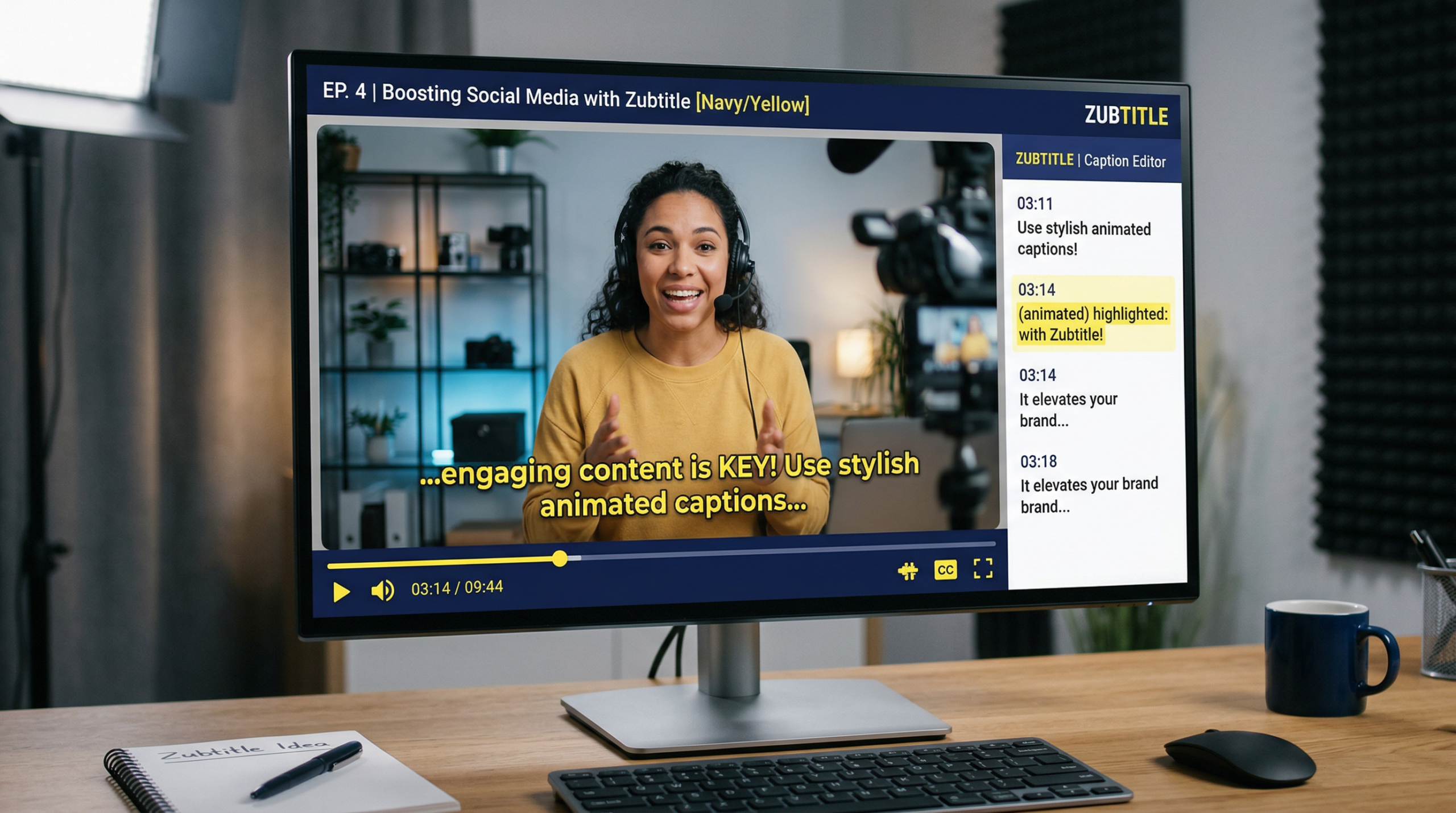
That’s where Zubtitle comes in. It’s a web-based video editor built specifically for people who need captions fast—social media creators, marketers, podcasters, educators. No massive timeline to learn, no confusing layers. Just upload your video, let the AI do its thing, and you’ve got captioned content ready to post.
But is it actually worth your time (and money)? Let’s find out.
What Zubtitle Actually Does
Zubtitle is fundamentally an automatic caption generator wrapped in a simple video editor. Here’s what you can do with it:
Automatic Transcription
Upload your video, and Zubtitle’s AI transcribes the audio into text captions automatically. The accuracy is pretty solid—it uses speech recognition technology similar to what you’d find in Rev or Otter.ai. You’ll still need to review for accuracy (especially with technical terms or names), but it saves you from typing everything manually.
Caption Customization
Once the captions are generated, you can edit them directly in the interface. Change the text, adjust timing, fix typos. You’ve also got control over the visual styling—fonts, colors, positioning, background boxes. If you want that bold yellow text with black outlines that’s everywhere on social media, you can do that.
Resize for Different Platforms
This is where Zubtitle gets really useful. You can resize your video for different aspect ratios—square (1:1), vertical (9:16), horizontal (16:9)—without having to re-edit everything. Great if you’re repurposing one video across Instagram, TikTok, YouTube, and LinkedIn.
Basic Video Editing
Zubtitle isn’t trying to be Premiere Pro, but it’s got enough editing features for quick social content. You can trim clips, add progress bars, insert headlines and text overlays, and include your logo. There’s also an audiogram feature for turning podcast clips into visual content.
Bulk Processing
If you’re creating lots of video content, Zubtitle offers bulk pricing where you can buy captioning minutes in advance. Upload multiple videos, process them in batches, and download everything at once. They also let you export transcript files (.txt) separately, which is handy for repurposing content.
Pricing: What You’ll Actually Pay
Zubtitle has three main pricing tiers, and the free plan is actually pretty generous for testing things out.
| Plan | Price | Videos/Month | Key Features |
|---|---|---|---|
| Free | $0 | 2 videos | All editor features, Zubtitle watermark |
| Guru | $19/month or $190/year | 10 videos | No watermark, all features, priority support |
| Pro/Enterprise | Custom pricing | Unlimited or higher limits | Team collaboration, bulk processing, API access |
Bulk Pricing Option: Instead of monthly subscriptions, you can purchase captioning minutes in advance. This is especially cost-effective if you have irregular video production schedules or seasonal campaigns.
The Value Calculation: At $19/month for 10 videos, you’re paying $1.90 per captioned video. Compare that to hiring a freelancer on Fiverr ($5-15 per video) or using Rev ($1.50/minute for human captions). If you’re producing regular social content, Zubtitle pays for itself fast.
Pros & Cons: The Honest Truth
What Works Really Well
Speed: This is Zubtitle’s biggest win. Upload a 5-minute video, and you’ll have auto-generated captions ready in under a minute. That’s faster than typing your own captions or waiting for a transcription service.
Dead Simple Interface: You don’t need a tutorial to figure out Zubtitle. The workflow is obvious—upload, review captions, customize style, export. If you’ve been intimidated by “real” video editors, this feels refreshingly straightforward.
Good Transcription Accuracy: The AI does a solid job with clear audio. Accents, background noise, and technical jargon can trip it up (just like any speech-to-text tool), but for standard podcasts and talking-head videos, accuracy is 90%+.
Platform-Specific Resizing:Being able to create square, vertical, and horizontal versions from the same project saves a ton of time. No more exporting and re-editing in different apps. This is why Zubtitle Review 2026 pricing stands out in the market.
Free Plan That Actually Works: Two videos per month might not sound like much, but it’s enough to test the platform properly. Most competitors lock everything behind a paywall or slap on intrusive watermarks.
Where It Falls Short
Limited Advanced Editing: If you need multi-track editing, complex animations, or color grading, Zubtitle isn’t the tool. It’s designed for quick social content, not polished productions.
Watermark on Free Plan: The Zubtitle branding on free videos is pretty noticeable. You’ll need to upgrade to remove it, which is fair but worth knowing upfront.
Video Limits Feel Tight for Agencies: If you’re managing multiple clients or producing daily content, 10 videos/month on the Guru plan might not cut it. You’ll need to jump to custom pricing, which isn’t transparent.
Caption Styles Can Look Generic: While you can customize fonts and colors, the default templates look very “social media 2024.” If you want highly branded or unique caption designs, you’ll need to put in extra work.
Zubtitle vs. The Competition
Let’s see how Zubtitle stacks up against similar tools in the automatic captioning space.
| Feature | Zubtitle | VEED.io | SubtitleBee | Kapwing |
|---|---|---|---|---|
| Starting Price | $19/month | $24/month | $19/month | $24/month |
| Free Plan | 2 videos/month | 10 min/month | 10 min trial | Limited features |
| Auto Captions | Yes, fast | Yes, good accuracy | Yes, 120+ languages | Yes, basic |
| Video Editing | Basic trim & resize | Full editor | Minimal | Full editor |
| Best For | Speed & simplicity | All-in-one editing | Multilingual content | Team collaboration |
Zubtitle wins on speed and ease of use. If your primary goal is “add captions fast,” this is your tool.
VEED.io is better if you need more robust editing capabilities alongside captions. It’s like having a lightweight video editor with auto-captioning built in.
SubtitleBee is the go-to for international content creators. Supporting 120+ languages means you can caption videos in virtually any market.
Kapwing excels at team workflows. If multiple people need to collaborate on video projects, Kapwing’s shared workspace makes more sense than Zubtitle’s solo-focused interface.
Real-World Use Cases: When Zubtitle Shines
Let me walk you through some scenarios where Zubtitle is genuinely useful.
Use Case 1: Repurposing Podcast Episodes
You’ve got a 45-minute podcast episode. You want to pull out 3-4 key clips for Instagram Reels and TikTok.
The Workflow:
- Upload the full episode to Zubtitle
- Let it auto-generate captions for the entire thing
- Scrub through and find your best 60-90 second moments
- Trim each clip, adjust captions if needed
- Add your podcast logo and a headline (“How to Automate Email Marketing”)
- Resize for vertical (9:16) format
- Export and schedule to social media
Time saved: What used to take 2 hours (transcribe, edit, caption each clip separately) now takes 20 minutes.
Use Case 2: LinkedIn Thought Leadership Videos
You’re a consultant or coach creating regular talking-head videos for LinkedIn. You film yourself giving tips, but you know captions will help with engagement since most people scroll with sound off.
The Workflow:
- Record your 2-3 minute video on your phone
- Upload to Zubtitle
- Auto-generate captions
- Customize caption style to match your brand colors
- Add a text overlay with the main takeaway
- Export as square (1:1) for LinkedIn’s feed format
Why it works:The entire process takes less than 10 minutes, so you’re more likely to stay consistent with posting. For more insights, see our Waymark AI Video Tool Review 2026: Script-to-TV-Ad in Minutes.
Use Case 3: Course and Tutorial Content
You’re creating an online course and need captions for accessibility. You’ve got 20+ lesson videos, each 5-10 minutes long.
The Workflow:
- Upload all videos in bulk using Zubtitle’s batch processing
- Let it caption everything overnight
- Review and edit captions for accuracy (especially for technical terms)
- Export videos with burned-in captions or download .txt transcripts
- Use transcripts for SEO-friendly lesson descriptions
Bonus benefit: Those transcripts can be repurposed into blog posts, email content, or PDF study guides.
Use Case 4: Event Recap Videos
You hosted a webinar or conference. Now you want to create highlight reels showcasing the best moments for social promotion.
The Workflow:
- Upload the full event recording
- Auto-caption the entire video
- Identify quotable moments from speakers
- Trim into 30-60 second clips
- Add speaker names and titles as text overlays
- Resize for Instagram Stories, LinkedIn, and YouTube Shorts
The result: You’ve turned one long recording into 10+ shareable clips, all properly captioned, in under an hour.
Expert Tips for Getting More Out of Zubtitle
Here are some insider tricks I’ve picked up from using Zubtitle regularly:
1. Clean Audio = Better Captions
The transcription AI works best with clear audio. If you’re recording specifically for Zubtitle, use a decent microphone, minimize background noise, and speak clearly. You’ll spend way less time fixing caption errors.
2. Create Caption Style Templates
If you’re producing regular content, save time by creating a branded caption style once and reusing it. Set your fonts, colors, positioning, and save it. Now every video automatically matches your brand without manual tweaking.
3. Use Keyboard Shortcuts for Speed
Learn the keyboard shortcuts for trimming and splitting clips. Spacebar to play/pause, “I” to mark in-point, “O” to mark out-point. Once you get muscle memory for these, you’ll fly through the editing process.
4. Export Transcripts for Repurposing
Don’t just use Zubtitle for video. Download those .txt transcripts and repurpose the content. Turn them into blog posts, LinkedIn articles, email newsletters, or quote graphics. One video becomes 10 pieces of content.
5. Batch Process During Off-Hours
If you’re using bulk pricing, upload and process videos at night or during lunch. Zubtitle works in the background, so you can come back to finished videos without waiting around.
6. Review at 1.5x Speed
When reviewing auto-generated captions for accuracy, play the video at 1.5x speed. You’ll catch errors faster without wasting time on perfect sections.
7. Add a Hook in the First 3 Seconds
Use Zubtitle’s headline feature to add a text overlay in the opening seconds. Something like “3 Email Marketing Mistakes” or “Why Your Ads Aren’t Converting.” This stops scrollers and boosts watch time.
8. Test Different Caption Positions
Don’t default to bottom-center captions. Try placing them in the top third if your video has important visuals at the bottom, or experiment with side placement for widescreen content. Small changes can improve readability. This is why Zubtitle Review 2026 pricing stands out in the market.
Who Should (and Shouldn’t) Use Zubtitle
Zubtitle Is Perfect For:
Social Media Managers who need to produce captioned content quickly across multiple platforms. The resize feature alone is worth it.
Podcasters turning audio content into video clips for YouTube, Instagram, and TikTok. The workflow is optimized for this exact use case.
Small Business Owners creating their own marketing videos without a budget for professional editing. The simplicity means you’ll actually use it.
Course Creators and Educators who need accessible content with captions but don’t want to manually transcribe hours of lessons.
Marketing Teams with Limited Resources that can’t afford a dedicated video editor but still need regular video content.
Skip Zubtitle If:
You Need Advanced Editing Features: Zubtitle won’t replace Premiere, Final Cut, or even DaVinci Resolve. If your projects require complex color grading, multi-track audio, or advanced effects, look elsewhere.
You’re Producing High-Volume Content: The 10 videos/month limit on the affordable plan is restrictive for agencies or creators posting daily. You’ll hit the cap fast and need expensive custom pricing.
You Want Highly Customized Caption Animations: Zubtitle’s caption styles are functional but not fancy. If you want kinetic typography or complex animations, you’ll need After Effects or similar tools.
You Work with International Content: While Zubtitle handles English well, it’s not optimized for multilingual captioning like SubtitleBee. If you’re captioning content in 5+ languages regularly, there are better options.
Final Verdict: Is Zubtitle Worth It?
Here’s my take: Zubtitle is excellent at one thing—adding captions to videos fast. And honestly? That’s exactly what it should be.
It’s not trying to be an all-in-one video production suite. It’s not competing with professional editing software. It’s solving a specific, annoying problem: making your videos accessible and engaging for social media without spending hours on manual transcription and caption syncing.
The interface is dead simple, the transcription accuracy is solid, and the pricing is reasonable if you’re producing regular content. The ability to resize for different platforms is a huge time-saver, and the free plan is actually usable for testing.
But you’ve got to know what you’re getting. This is a tool for speed and efficiency, not creative flexibility. If you need advanced editing or highly customized designs, you’ll be frustrated. If you just need captions done quickly and correctly, you’ll be thrilled.
My Rating: 4.2/5 Stars
Best for: Social media creators, podcasters, small business owners, and marketing teams who need fast, reliable auto-captioning with basic video editing. If your goal is “caption these videos and get them posted today,” Zubtitle delivers.
Skip if:You need professional-grade editing, produce 20+ videos per month on a budget, or require extensive multilingual support. For more insights, see our Best AI Video Tools for Product Demos in 2026: Showcase, Convert & Sell More.
The bottom line? Zubtitle won’t revolutionize your entire video workflow, but it’ll make one specific part of it way less painful. And sometimes, that’s exactly what you need.