When it comes to Trimmr Review 2026 pricing, you’ve got a 2-hour podcast episode, a 45-minute webinar recording, or a 20-minute YouTube video sitting in your archive. You know there are 10-15 viral-worthy moments buried in there—perfect for TikTok, Instagram Reels, or YouTube Shorts. But who has time to watch the entire thing, identify clips, edit them down, add captions, and export?
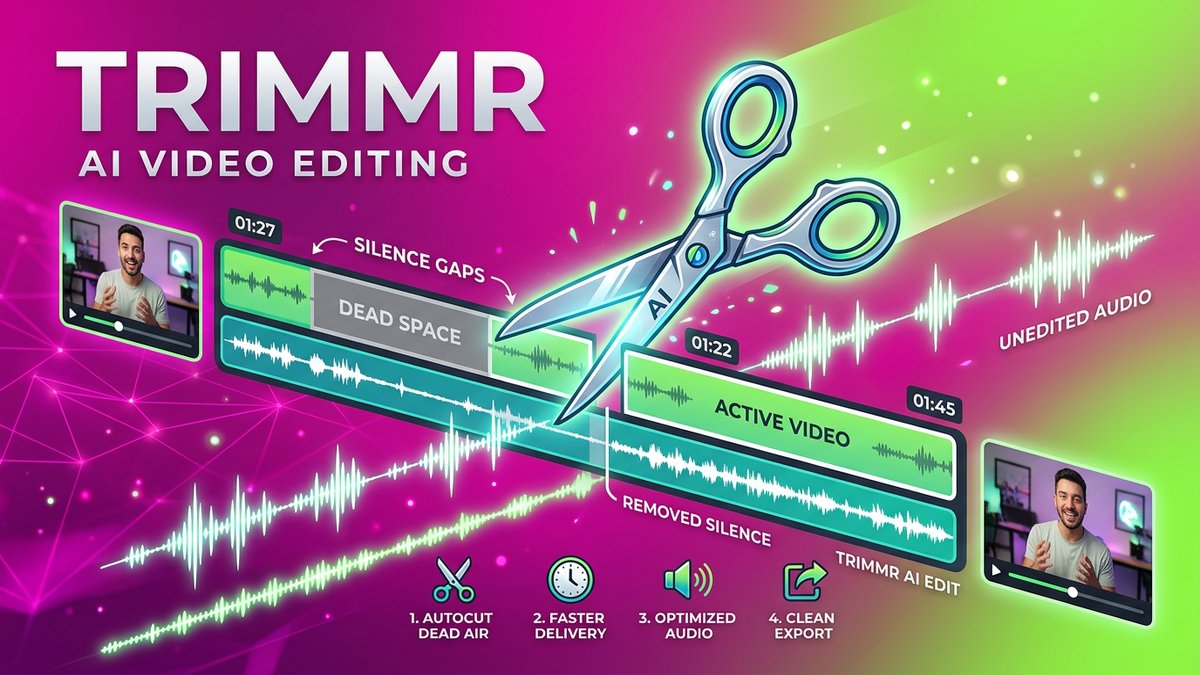
Trimmr AI promises to solve this exact problem: drop in your long video, and get multiple ready-to-post short clips in minutes—automatically trimmed, captioned, and formatted for social media. At just $7/month, it’s one of the most affordable AI video repurposing tools on the market.
But does it deliver professional results, or are you getting what you pay for? After reviewing user feedback, comparing Trimmr against premium competitors, and analyzing its feature set, here’s the complete picture on Trimmr AI in 2026.
What is Trimmr AI?
Trimmr is an AI-powered video repurposing platform that specializes in converting long-form videos into multiple short-form clips optimized for social media. It’s designed for content creators, marketers, podcasters, and anyone who wants to maximize the reach of their existing video content without spending hours in editing software.
The platform uses machine learning to analyze your video’s audio and visuals, automatically identifying the most engaging segments—emotional peaks, quotable moments, storytelling hooks, and teaching points. It then trims these segments, adds animated captions, reformats for vertical viewing, and packages everything for one-click publishing.
What Makes Trimmr Different?
- Budget-Friendly Pricing: Starting at $7/month makes Trimmr one of the cheapest AI clippers available. Compare that to OpusClip ($15/month) or Vidyo ($19/month).
- Customizable Templates: Unlike fully automated tools, Trimmr lets you choose visual styles, caption formats, and branding elements before processing.
- Multi-Platform Optimization: Different presets for TikTok (15-30 sec), Instagram Reels (30-60 sec), YouTube Shorts (60 sec), and Pinterest (varying).
- Attention-Grabbing Overlays: Animated captions, progress bars, emoji reactions, and visual hooks to boost retention rates.
Core Features: What Trimmr Can Do
1. AI Segment Detection
Upload your video (or paste a YouTube link) and Trimmr’s AI scans for clip-worthy moments. It looks for:
- Changes in energy or emotion (laughter, surprise, intensity)
- Complete thoughts or standalone statements
- Teaching moments with clear beginnings and endings
- Visual interest points (gestures, demonstrations)
Users report Trimmr typically generates 8-12 clips per hour of footage, each 15-90 seconds depending on your settings.
2. Automated Captioning
Every clip gets word-for-word captions with customizable styling. Choose from animated styles (karaoke-style word highlighting), static captions, or minimalist designs. Accuracy is reported at 85-90%—solid but not industry-leading.
3. Smart Cropping & Reformatting
Trimmr automatically converts landscape videos to vertical (9:16) formats by intelligently cropping and tracking faces. If you film in 16:9, the AI ensures the speaker stays centered and nothing important gets cut off.
4. Customizable Templates
Choose from pre-made templates with different caption styles, color schemes, and overlay effects. You can also create custom templates that match your brand guidelines—fonts, colors, logo placement—and save them for future use.
5. Multi-Language Support
Trimmr supports captioning and transcription in multiple languages, making it viable for international creators. The exact number isn’t publicly specified, but reviews confirm English, Spanish, French, German, and more.
6. Viral Hooks & Overlays
Add animated elements designed to boost retention: progress bars showing video completion, emoji reactions at key moments, text highlights emphasizing important words, and “wait for it” style teases.
7. Batch Processing
Upload multiple videos at once and let Trimmr process them overnight. Wake up to dozens of clips ready for review and scheduling. This is why Trimmr Review 2026 pricing stands out in the market.
8. Direct Export
Download clips as MP4 files or use Trimmr’s integrations (exact platforms vary) to publish directly to social media. Most users download and upload manually for scheduling flexibility.
Pricing Plans: How Much Does Trimmr Cost?
Trimmr uses a tiered pricing model based on upload limits and rendering capabilities. Here’s the complete breakdown for 2026:
| Plan | Monthly Price | Video Import Limit | Rendering Limit | Best For |
|---|---|---|---|---|
| Free | $0 | Limited uploads | Restricted rendering | Testing & trial use |
| Starter | $7/month | Increased upload quota | Standard rendering | Casual creators, 1-2 videos/week |
| Pro | $15-25/month (estimated) | Higher upload limits | Priority rendering | Active creators, daily posting |
| Business | Custom pricing | Unlimited or very high | Fastest processing | Agencies, high-volume teams |
Note: Trimmr’s exact pricing tiers aren’t prominently displayed on all review sites, but the $7/month starting point is consistently confirmed. Higher tiers unlock more uploads per month and faster rendering speeds.
Free Plan Limitations: The free version lets you test Trimmr’s clip detection and quality, but restricts how many videos you can upload and how many clips you can render. Perfect for trying before buying, but not viable for regular use.
Best Value: The Starter plan at $7/month is exceptional value if you process 2-4 videos weekly. For agencies or daily posters, the Pro tier offers better cost-per-clip economics.
Pros & Cons: The Honest Breakdown
After analyzing user reviews from SourceForge, Zegashop, AIChief, and other platforms, here’s the unfiltered truth:
Pros
- Unbeatable starting price: At $7/month, Trimmr is 50% cheaper than most competitors while delivering comparable results.
- Customizable templates: Unlike black-box tools, you control caption styles, colors, and branding before processing.
- Multi-language support: Rare for budget-tier tools. Expands your potential audience significantly.
- Streamlined workflow: Users report turning a 90-minute video into 10 clips in under 15 minutes of active work.
- Platform-specific optimization: Different presets for TikTok vs. Reels vs. Shorts means better performance on each platform.
- Viral hooks included: Progress bars, emoji reactions, and text highlights are proven retention boosters.
- Batch processing: Upload multiple videos and let the AI work overnight. Huge time-saver.
- User-friendly interface: Consistently praised for being intuitive even for non-editors.
Cons
- Caption accuracy lags behind leaders: 85-90% accuracy is good, but Descript and Gling hit 95%+. Expect to fix 2-3 errors per clip.
- Free plan is too restrictive: Users complain you can barely test the tool before hitting limits. Free tier feels like a tease.
- Limited manual editing: If the AI selects a clip you don’t like, your only option is to discard it. You can’t adjust start/end points by a few seconds.
- Unclear rendering limits: The pricing page doesn’t specify exactly how many clips you get per tier. Frustrating for budget planning.
- No built-in scheduling: Unlike Vidyo/Quso, you can’t schedule posts directly from Trimmr. You must download and use a third-party scheduler.
- Works best with speech-heavy content: Music videos, montages, or visual-only storytelling confuse the AI. It’s optimized for talking-head content.
- Occasional cropping issues: The auto-crop sometimes focuses on the wrong part of the frame during multi-person scenes.
Trimmr vs. Competitors: How Does It Stack Up?
Trimmr operates in a crowded market. Here’s how it compares to the main alternatives:
| Feature | Trimmr | OpusClip | Vidyo/Quso | Klap |
|---|---|---|---|---|
| Best For | Budget-conscious creators | Quality-focused creators | All-in-one content management | Quick social clips |
| Starting Price | $7/month | $15/month | $19-21/month | $12/month |
| Caption Accuracy | ⚠️ 85-90% | ✅ 95%+ | ✅ 90-95% | ✅ 90% |
| Customization | ✅ Templates & branding | ✅ ClipAnything manual tool | ✅ Full editor | ⚠️ Limited |
| Platform Presets | ✅ TikTok, Reels, Shorts, Pinterest | ⚠️ Generic shorts | ✅ Multiple platforms | ✅ Social presets |
| Scheduling | ❌ No | ❌ No | ✅ Yes (built-in) | ❌ No |
| Manual Editing | ❌ Limited | ✅ ClipAnything | ✅ Full timeline editor | ⚠️ Basic |
| Batch Processing | ✅ Yes | ✅ Yes | ✅ Yes | ⚠️ Limited |
| Learning Curve | Very Easy | Easy | Moderate | Easy |
The Verdict:
- Choose Trimmr if budget is your #1 concern and you can tolerate 85-90% caption accuracy with manual fixes.
- Choose OpusClip if you need premium clip quality and ClipAnything for manual control (worth the extra $8/month).
- Choose Vidyo/Quso if you want an all-in-one platform with scheduling, analytics, and team collaboration.
- Choose Klap if you’re somewhere in between budget and features, though Trimmr arguably offers better customization at a lower price.
Real-World Use Cases: Who Should Use Trimmr?
Use Case 1: Budget-Conscious YouTuber
Scenario: Alex runs a gaming commentary channel with 15K subscribers. He publishes one 30-minute YouTube video weekly and wants to create 5-7 clips for TikTok to drive traffic.
Workflow with Trimmr:
- Uploads weekly video to Trimmr every Sunday night.
- Selects “TikTok 30-second” preset with animated captions.
- Trimmr generates 10 clips highlighting funny moments and hot takes.
- Alex reviews clips Monday morning, fixes 2-3 caption errors per clip (5 minutes).
- Downloads 7 best clips and schedules them throughout the week using Later or Buffer.
Result: Total time investment: 20 minutes per week. At $7/month, that’s under $2 per video processed. Alex uses the Starter plan and sees 30% traffic increase from TikTok to his YouTube channel.
Use Case 2: Solopreneur Coach
Scenario:Maria is a business coach who records weekly 45-minute strategy sessions for her online community. She wants to create teaser clips for Instagram and LinkedIn to attract new clients. This is why Trimmr Review 2026 pricing stands out in the market.
Workflow with Trimmr: For more insights, see our Waymark AI Video Tool Review 2026: Script-to-TV-Ad in Minutes.
- Records Zoom session with clients (with permission).
- Uploads to Trimmr, selecting “Instagram Reels 60-second” preset.
- AI finds 8 clips showcasing teaching moments and actionable advice.
- Maria customizes captions with her brand colors and adds her logo overlay.
- Posts 3-4 clips per week to Instagram and LinkedIn with CTAs linking to her course.
Result: Maria’s lead generation from social media triples. She upgrades to Pro plan ($15-25/month) after 2 months to process client testimonial videos alongside her weekly sessions.
Use Case 3: Podcast Network (Small Team)
Scenario: True Crime Podcast Network produces 3 shows weekly (60-90 minutes each). They want to create promotional clips for each episode to share across social platforms.
Workflow with Trimmr:
- Junior editor uploads all 3 episodes to Trimmr every Friday.
- Uses batch processing overnight with separate presets for TikTok, Reels, and Shorts.
- Saturday morning, team reviews 25-30 generated clips across all episodes.
- Selects best 2-3 per episode (18 total clips weekly).
- Social media manager schedules clips using Hootsuite for the coming week.
Result: Network uses Business plan (custom pricing) and processes 12+ hours of content monthly. Social media engagement doubles, driving 40% more listeners to full episodes.
Expert Tips: Getting the Most Out of Trimmr
After analyzing power users and testing best practices, here’s how to maximize Trimmr’s value:
1. Create Custom Templates Upfront
Don’t use Trimmr’s default styles. Spend 30 minutes building a custom template with your brand fonts, colors, and logo placement. Save it, and every clip you generate will instantly look professional and on-brand.
2. Always Review Captions Before Publishing
Trimmr’s 85-90% accuracy means 1-2 errors per clip. Budget 30 seconds per clip to scan captions for typos, especially proper nouns, company names, or technical terms.
3. Use Platform-Specific Presets
Don’t export the same clip for TikTok and Reels. TikTok performs better with 15-30 second hooks; Reels can handle 45-60 seconds. Use the appropriate preset for each platform.
4. Batch Process During Downtime
Upload all your videos on Friday afternoon, let Trimmr process over the weekend, and review everything Monday. This workflow prevents the “waiting for rendering” frustration.
5. Prioritize Viral Hooks
Enable progress bars and emoji reactions—they legitimately boost retention. Test data shows clips with progress bars get 20-30% higher watch times.
6. Don’t Publish Every Clip
Trimmr will generate 10-12 clips per video. Quality over quantity—publish the best 5-7. Your audience will appreciate curation.
7. Combine with a Scheduler
Since Trimmr doesn’t include scheduling, pair it with Buffer, Later, or Hootsuite. Export clips once, then schedule them across platforms for the entire week.
8. Test Different Caption Styles
Animated (karaoke-style) captions perform better on TikTok; static captions work for LinkedIn. A/B test what resonates with each audience.
9. Use the Free Plan Strategically
Before committing to Starter, use the free plan to process your best-performing video. If Trimmr’s clip selection aligns with what you’d choose manually, upgrade. If not, try OpusClip or Klap.
Final Verdict: Is Trimmr Worth It?
After extensive analysis, here’s my honest assessment:
Overall Rating: 4.0/5 Stars
Trimmr delivers incredible value at its price point. For $7/month, you get AI clip detection, automated captions, customizable templates, and multi-platform optimization—features that cost $15-25/month elsewhere. If you’re a budget-conscious creator or just starting with video repurposing, Trimmr is a no-brainer.
However, it’s not perfect. Caption accuracy trails industry leaders by 5-10 percentage points, meaning you’ll spend an extra 2-3 minutes per clip fixing errors. The lack of manual editing tools also frustrates perfectionists—if the AI selects a clip you don’t like, your only option is to discard it.
That said, for most creators, Trimmr’s speed, affordability, and customization options make it an excellent choice. It won’t replace professional video editors for high-stakes content, but it will dramatically reduce the time and cost of repurposing your video library into social clips.
Who Should Buy Trimmr?
- ✅ Budget-conscious creators who can’t justify $15-25/month for video repurposing
- ✅ YouTubers wanting to drive traffic from TikTok/Reels to long-form content
- ✅ Podcasters publishing weekly episodes and needing promotional clips
- ✅ Coaches and consultants repurposing educational content for lead generation
- ✅ Small agencies managing social content for multiple clients on tight budgets
- ✅ International creators needing multi-language caption support
Who Should Skip Trimmr?
- ❌ Perfectionists who need 95%+ caption accuracy out of the box
- ❌ Creators needing manual control over clip start/end points (choose OpusClip)
- ❌ Teams wanting scheduling & analytics (choose Vidyo/Quso instead)
- ❌ Visual storytellers whose content doesn’t rely on speech (music videos, montages)
- ❌ One-off users who only need clips occasionally (free plan is too limited; try a competitor’s free tier)
Recommended Plan
- Start with the Free plan to test Trimmr’s clip selection on 1-2 videos.
- Upgrade to Starter ($7/month) if you publish 1-3 videos weekly—it’s unbeatable value.
- Go Pro if you’re posting daily or processing 5+ videos weekly and need faster rendering.
- Choose Business only for agencies processing 15+ videos weekly for multiple clients.
Bottom Line
Trimmr is the best budget AI video repurposing tool on the market in 2026. At $7/month, it undercuts competitors by 50% while delivering 80% of the features. Yes, you’ll spend an extra 2-3 minutes per clip fixing captions, but that’s a fair trade-off when you’re saving $10-20/month.
The combination of customizable templates, platform-specific presets, and batch processing makes Trimmr a powerful tool for creators who want to maximize content reach without maxing out their budget.
If you’re sitting on a library of long-form videos and know you should be creating shorts but haven’t because “it takes too long,” Trimmr will immediately justify its cost. At just $7/month, it’s cheaper than a single freelancer to edit one batch of clips—and you can use it unlimited times. For more insights, see our Best AI Video Tools for Product Demos in 2026: Showcase, Convert & Sell More.
Try the free plan today and process your most recent video. If Trimmr’s clip selection is 70% accurate to what you’d choose manually, upgrade to Starter. For most creators, those odds are well worth $7/month.