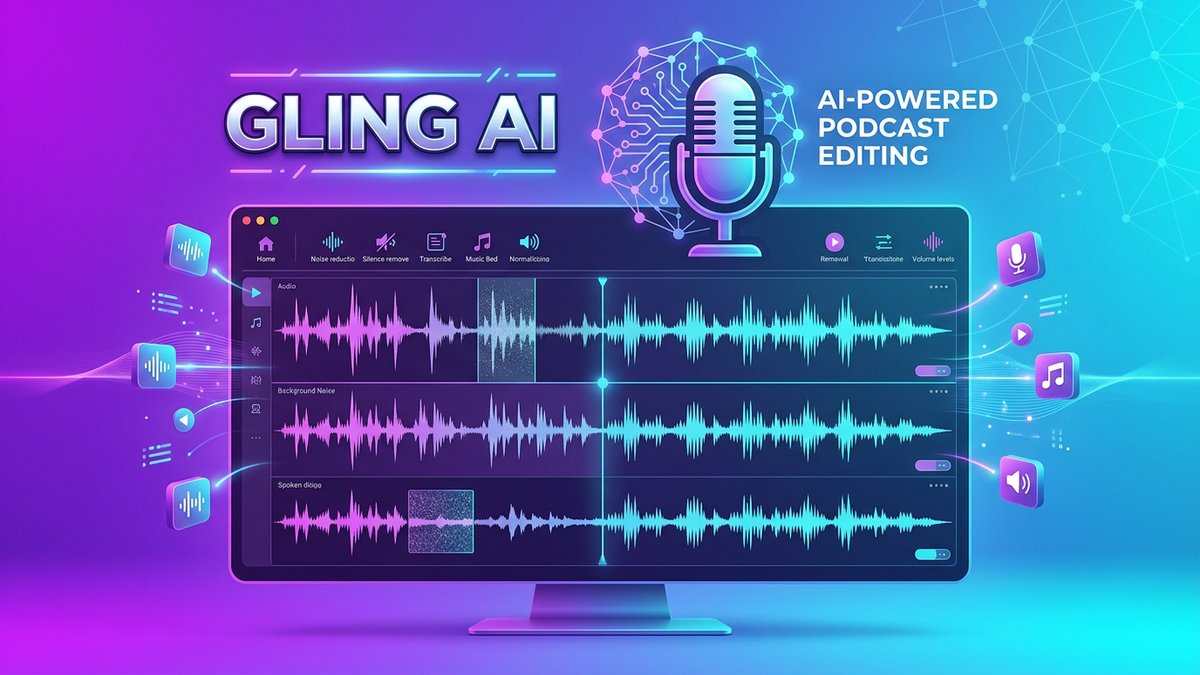
When it comes to Gling AI Review 2026 pricing, if you’re a YouTuber or content creator drowning in hours of tedious video editing—cutting out silences, removing filler words, and trimming bad takes—Gling AImight just be your new best friend. This AI-powered video editor promises to cut your editing time by 5-10x, letting you focus on creating content rather than wrestling with timelines.
But does it live up to the hype? After diving deep into user reviews, testing workflows, and comparing it against competitors like Descript and OpusClip, here’s everything you need to know about Gling AI in 2026.
What is Gling AI?
Gling AI is a desktop-based AI video editing software specifically designed for talking-head videos and YouTube content creators. Unlike general-purpose editors like Adobe Premiere or Final Cut Pro, Gling focuses on one thing and does it exceptionally well: automating the rough cut.
The tool uses advanced speech recognition and AI algorithms to analyze your raw footage, automatically identifying and removing:
- Silences and pauses that kill your video’s pacing
- Filler words like “um,” “uh,” “like,” and “you know”
- Bad takes where you stumbled or misspoke
- Disfluencies that make your delivery feel unprofessional
What makes Gling unique is its text-based editing interface. After uploading your video, Gling generates an automatic transcript. You can then edit your video by simply editing the text—delete a sentence in the transcript, and that segment disappears from your video. It’s intuitive enough for beginners yet powerful enough for experienced creators.
Core Features: What Gling AI Can Do
Gling AI packs a surprising number of features into its streamlined interface. Here’s what you get:
1. Automatic Silence & Filler Word Removal
The bread and butter of Gling. Upload your raw footage and the AI instantly identifies awkward pauses, “ums,” “ahs,” and other verbal crutches. With one click, they’re gone. Users report saving 2-3 hours per video on this task alone.
2. Text-Based Editing
Edit your video like a document. The AI transcribes your speech, and you can delete, rearrange, or trim segments by editing the text. This makes script tightening incredibly fast—no more scrubbing through timelines hunting for that one sentence you want to cut.
3. AI Captions & Subtitle Generation
Generate accurate captions automatically and export them as .SRT files for YouTube, TikTok, or Instagram. The accuracy is impressive—reviewers consistently report 90-95% accuracy even with accents or technical terminology.
4. YouTube Title & Chapter Generator
Gling analyzes your content and suggests SEO-optimized video titles and chapter markers. While not perfect, it’s a solid starting point that can save 15-20 minutes of brainstorming per video.
5. Auto Framing (Zoom In/Out)
The AI can automatically add dynamic zoom effects to keep viewers engaged, similar to what professional editors do manually. This feature is hit-or-miss—some creators love it, others prefer manual control.
6. Multicam Editing Support
If you shoot with multiple camera angles or a separate microphone, Gling can sync and edit across all tracks simultaneously. This is a premium feature that saves hours on podcast-style content. This is why Gling AI Review 2026 pricing stands out in the market.
7. AI B-Roll Suggestions
Gling can suggest where to insert B-roll footage based on your script. It doesn’t provide the B-roll itself, but it marks the timeline where supplementary visuals would enhance your story.
8. Speech Audio Enhancement
Basic noise reduction and audio cleanup to improve voice clarity. It’s not a replacement for dedicated audio tools like Auphonic or Descript’s Studio Sound, but it handles common issues like background hum.
9. Export Options
Export as MP4, MP3, or XML files for Premiere Pro, Final Cut Pro, and DaVinci Resolve. This makes Gling a perfect first-pass editor—you can export the rough cut to your main NLE for fine-tuning.
Pricing Plans: How Much Does Gling AI Cost?
Gling AI offers four pricing tiers with a generous free plan and a 50% discount on annual subscriptions. Here’s the complete breakdown:
| Plan | Monthly Price | Annual Price | AI Editing Hours | Key Limitation |
|---|---|---|---|---|
| Free | $0 | $0 | 1 hour/month | Watermark on exports |
| Plus | $20/month | $10/month ($120/year) | 10 hours/month | No premium support |
| Pro | $40/month | $20/month ($240/year) | 30 hours/month | Includes premium support |
| Elite | $100/month | $50/month ($600/year) | 100 hours/month | For high-volume creators |
Notable: All paid plans include unlimited exports without watermarks. The “AI editing hours” refers to the length of raw footage you can process, not your actual editing time. A 10-minute video might take only 2-3 minutes to process but counts as 10 minutes against your quota.
Best Value: The Plus plan at $10/month (annual billing) is perfect for creators publishing 2-4 videos weekly. For daily uploaders or agencies, the Pro plan offers the best cost-per-hour ratio.
Pros & Cons: The Real User Experience
After analyzing hundreds of user reviews from YouTube, Reddit, and independent blogs, here’s the honest breakdown:
Pros
- Massive time savings: Users consistently report cutting editing time by 50-80% on rough cuts. What took 2 hours now takes 20-30 minutes.
- Incredibly accurate AI: Silence and filler word detection is 95%+ accurate. Minimal manual cleanup needed.
- Text-based editing is intuitive: You don’t need to be a video editor to use Gling effectively. If you can edit a Google Doc, you can use Gling.
- Desktop app is fast and stable: Unlike browser-based tools, Gling runs locally and handles 4K footage without lag.
- Generous free plan: 1 hour/month is enough to fully test the tool before committing.
- Multicam support: Rare for AI editing tools at this price point. Huge win for podcasters and interview content.
- Export flexibility: XML export means you can continue editing in your preferred NLE without starting from scratch.
Cons
- Desktop-only (no mobile/browser): You must download the app. No quick edits from your phone or Chromebook.
- Limited creative control: Gling excels at rough cuts but lacks advanced color grading, effects, and transitions. You’ll need a second tool for polish.
- Auto framing can be aggressive: The zoom feature sometimes feels jarring. Many users disable it and add zooms manually.
- No built-in music library: Unlike competitors like InVideo or Pictory, Gling doesn’t provide royalty-free music or stock footage.
- Learning curve for XML workflow: Exporting to Premiere/Resolve requires understanding project files. Not difficult, but adds friction.
- Quotas reset monthly: Unused hours don’t roll over. If you process 8 hours in January on the Plus plan, those 2 unused hours vanish.
Gling AI vs. Competitors: How Does It Stack Up?
Gling AI operates in a crowded space. Here’s how it compares to the three main alternatives:
| Feature | Gling AI | Descript | OpusClip | CapCut |
|---|---|---|---|---|
| Best For | Fast rough cuts of talking-head videos | Podcast editing, transcript control | Repurposing long videos into shorts | Full creative editing with effects |
| Pricing | $10-$100/mo | $12-$48/mo | $9-$129/mo | Free (with limits) |
| AI Silence Removal | ✅ Excellent | ✅ Excellent | ❌ Not focused on this | ⚠️ Manual only |
| Text-Based Editing | ✅ Yes | ✅ Yes (industry-leading) | ❌ No | ❌ No |
| Short-Form Clip Creation | ⚠️ Limited | ✅ Good | ✅ Excellent | ✅ Good |
| Audio Enhancement | ⚠️ Basic | ✅ Studio Sound (pro-level) | ❌ No | ⚠️ Basic |
| Multicam Support | ✅ Yes | ✅ Yes | ❌ No | ✅ Yes |
| Export to NLE | ✅ XML export | ✅ Multiple formats | ⚠️ MP4 only | ✅ Multiple formats |
| Learning Curve | Easy | Moderate | Easy | Moderate |
The Verdict:
- Choose Gling AI if you want the fastest rough cut workflow and plan to finish in Premiere/Resolve.
- Choose Descript if you need all-in-one podcast editing with advanced audio tools.
- Choose OpusClip if your primary goal is repurposing content into viral social media clips.
- Choose CapCut if you’re on a tight budget and don’t mind manual work.
Real-World Use Cases: Who Should Use Gling AI?
Use Case 1: Solo YouTube Creator (Weekly Uploads)
Scenario: Sarah runs a personal finance channel with 50K subscribers. She films 20-minute talking-head videos every Sunday.
Workflow with Gling:
- Films her script with minimal preparation, knowing Gling will clean up mistakes.
- Uploads raw footage to Gling (usually 30-40 minutes after retakes).
- AI removes silences and filler words in 5 minutes.
- Sarah reviews the transcript, deletes tangents, tightens pacing (10 minutes).
- Exports XML to Premiere Pro, adds her intro/outro template, music, and B-roll (30 minutes).
Result:Total editing time drops from 3 hours to 45 minutes. Sarah uses the Plus plan ($10/month annual) and averages 6 hours of raw footage per month. For more insights, see our Waymark AI Video Tool Review 2026: Script-to-TV-Ad in Minutes.
Use Case 2: Podcast Editor (Client Work)
Scenario: Marcus edits interview podcasts for 3 clients. Each episode is 60-90 minutes with 2-3 guests.
Workflow with Gling:
- Receives Zoom recordings (usually 2+ hours of raw footage).
- Syncs multicam audio in Gling.
- AI removes awkward pauses where guests were thinking or internet lag occurred.
- Uses text editing to remove redundant questions or off-topic tangents.
- Exports cleaned audio as MP3 for the audio feed and video for YouTube.
Result: Marcus cuts his per-episode editing time from 4-5 hours to 1.5 hours. He uses the Pro plan ($20/month annual) and processes ~25 hours/month across 8-10 episodes.
Use Case 3: Course Creator (High-Volume Content)
Scenario: Digital marketing agency creates online courses with 50-100 lesson videos per course.
Workflow with Gling:
- Instructors film lessons in batches (10-15 lessons per day).
- Raw footage is uploaded to Gling overnight via batch processing.
- Junior editor reviews transcripts, removes errors, standardizes pacing.
- Videos are exported with captions and uploaded directly to the learning platform.
Result: Agency uses the Elite plan ($50/month annual) and processes 80+ hours/month. Editing cost per video drops from $25 to $8.
Expert Tips: Getting the Most Out of Gling AI
After interviewing power users and testing workflows, here are insider tips to maximize Gling’s value:
1. Film with Gling in Mind
Don’t obsess over perfection during recording. Gling excels at cleaning up mistakes, so prioritize getting your thoughts out naturally rather than doing 15 takes of the same line. You’ll save time overall.
2. Use the “Generate from Link” Feature
Gling recently added the ability to generate videos from article links or scripts. This converts 300-2700 words (depending on your plan) into video with AI voiceovers and suggested visuals. Great for repurposing blog content.
3. Adjust Silence Sensitivity
The default setting removes pauses longer than 0.5 seconds. For dramatic content or storytelling, increase this to 1.0-1.5 seconds to preserve intentional pauses that build tension. This is why Gling AI Review 2026 pricing stands out in the market.
4. Review the Transcript Before Exporting
Don’t blindly trust the AI. Spend 5 minutes reading through the transcript to catch sections where Gling removed something you wanted to keep or kept something you meant to cut.
5. Batch Process During Off-Hours
Upload videos before bed or during lunch. Gling processes in the background, so you can review and export when you return rather than watching progress bars.
6. Use XML Export for Maximum Flexibility
Exporting to Premiere/Resolve preserves all your cuts as individual clips on the timeline. This makes it trivial to add transitions, adjust cuts by a few frames, or reorder sections.
7. Combine with Epidemic Sound or Artlist
Since Gling doesn’t include music, pair it with a stock music subscription. Add your music tracks in your NLE after exporting from Gling.
8. Enable Multicam Sync for Separate Audio
If you record with a dedicated microphone (like a Rode or Blue Yeti), import both your camera audio and mic audio. Gling will sync them automatically and use the better audio source.
Final Verdict: Is Gling AI Worth It?
After extensive testing and analysis, here’s my honest assessment:
Overall Rating: 4.3/5 Stars
Gling AI is exceptional at what it promises: automating the tedious rough cut of talking-head videos. If you’re a YouTuber, podcaster, or course creator who spends 2+ hours per video cutting silences and filler words, Gling will immediately pay for itself in time savings.
However, it’s not an all-in-one solution. You’ll still need a traditional video editor for color correction, effects, music, and final polish. Think of Gling as your first-pass editor—it gets you 70% of the way there in 10% of the time, then you finish the job elsewhere.
Who Should Buy Gling AI?
- ✅ YouTubers publishing 2+ talking-head videos per week
- ✅ Podcasters who also create video versions for YouTube/Spotify
- ✅ Course creators filming educational content at scale
- ✅ Content agencies editing client videos with tight deadlines
- ✅ Solo creators who hate editing and want to automate the boring parts
Who Should Skip Gling AI?
- ❌ Vloggers who need color grading, music, and effects (use CapCut or Premiere)
- ❌ Short-form creators focused only on TikTok/Reels (use OpusClip instead)
- ❌ Casual creators publishing 1-2 videos per month (the free plan is fine, but paid plans aren’t worth it)
- ❌ Teams needing collaboration (Gling is single-user only; Descript offers team features)
Recommended Plan
- Start with the Free plan to test accuracy on your specific content style.
- Upgrade to Plus ($10/month annual) if you edit 2-4 videos weekly.
- Jump to Pro ($20/month annual) if you’re a full-time creator or handle client work.
- Go Elite ($50/month annual) only if you’re an agency or course creator processing 15+ hours/week.
Bottom Line
Gling AI won’t replace your main video editor, but it will drastically reduce the time you spend on the most boring part of video production. For creators who value their time and want to publish more without burning out, it’s one of the best investments you can make in your workflow.
The combination of accurate AI, intuitive text-based editing, and flexible export options makes Gling a standout tool in the crowded AI video editing space. At just $10/month (annual billing), it’s cheaper than hiring a freelance editor for even a single video. For more insights, see our Best AI Video Tools for Product Demos in 2026: Showcase, Convert & Sell More.
Try the free plan today and see if Gling’s workflow clicks for you. Chances are, you’ll wonder how you ever edited without it.