When Zoom Just Doesn’t Cut It Anymore
When it comes to Riverside.fm Review 2026 pricing, picture this: you’re hosting a podcast interview with a guest in another country. You hit record on Zoom, the conversation flows beautifully, and then you sit down to edit. That’s when you notice it—the audio cuts out during the best quote, the video is pixelated whenever your guest moves, and there’s a weird echo you can’t fix.
You just spent an hour recording and now you’ve got unusable footage. Frustrating doesn’t even begin to cover it.
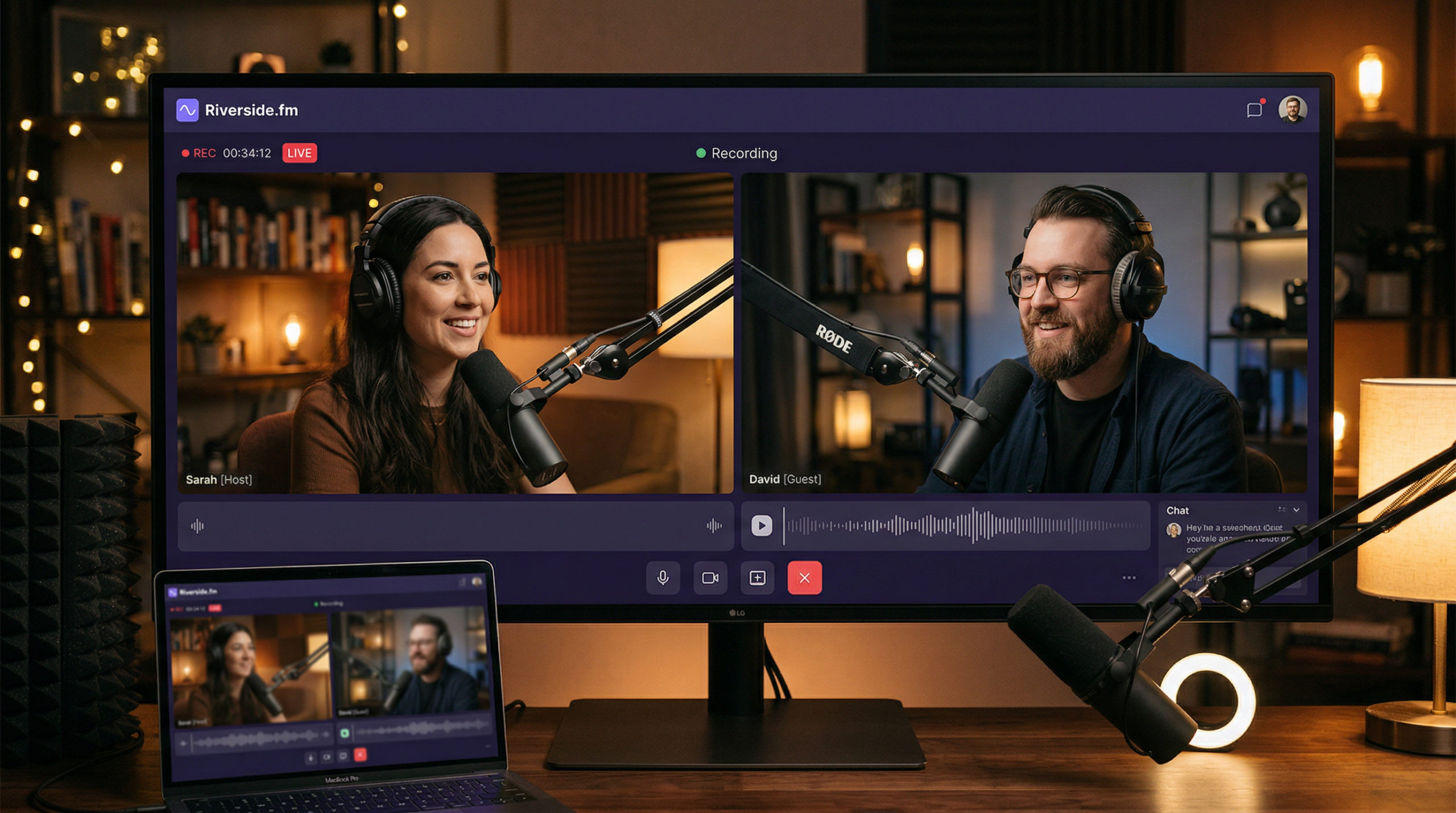
This is the problem Riverside.fm was built to solve. It’s a remote recording platform designed specifically for podcasters and video creators who need studio-quality recordings without actually being in a studio. Instead of relying on compressed video calls like Zoom or Skype, Riverside records locally on each participant’s device, then uploads the high-quality files afterward.
The result? 4K video and uncompressed audio, even if someone’s internet hiccups during the call.
But is it worth switching from your current setup? Let’s dig in.
What Riverside.fm Actually Does
Riverside is a browser-based recording studio for remote podcasts, interviews, and video content. Here’s what makes it different:
Local Recording Technology
This is the big differentiator. When you record on Riverside, the platform captures audio and video locally on each participant’s device—meaning it’s recording directly from your mic and camera, not from a compressed stream. The files are then uploaded to Riverside’s servers once the session ends.
Why does this matter? Because even if your internet connection is terrible, your recording quality stays pristine. You might see lag during the live conversation, but the final files are crystal clear.
Up to 4K Video and Uncompressed Audio
Riverside can record video up to 4K resolution (3840×2160) and audio at 48kHz WAV quality. That’s broadcast-level quality. Compare that to Zoom’s compressed 1080p at best, and you’ll immediately see (and hear) the difference.
Separate Audio Tracks for Each Speaker
Every participant gets their own audio track, which is a lifesaver in post-production. You can adjust levels, remove background noise, or even cut out a cough from one speaker without affecting everyone else.
AI-Powered Editing and Transcription
Riverside includes AI tools that automatically transcribe your recordings, generate show notes, create audiograms, and even suggest clips. You can edit the podcast by editing the transcript—click on a word, delete it, and that section gets removed from the audio. It’s like editing a Google Doc.
Live Streaming Integration
You can stream live to YouTube, Facebook, LinkedIn, or Twitch directly from Riverside. The platform handles the RTMP setup for you, so you don’t need OBS or other streaming software.
Virtual Backgrounds and Branding
Add your logo, custom backgrounds, and lower thirds during recording. This is especially useful for video podcasts or webinars where branding matters.
Pricing: What You’ll Actually Pay
Riverside offers a free plan and three paid tiers. Here’s the breakdown:
| Plan | Price | Recording Hours | Key Features |
|---|---|---|---|
| Free | $0 | 2 hours/month | 720p video, Riverside watermark, basic editing |
| Standard | $19/month | 5 hours/month | 1080p video, AI transcription, no watermark, multi-track audio |
| Pro | $29/month | 15 hours/month | 4K video, live streaming, advanced AI tools, custom branding |
| Business | Custom pricing | Unlimited | Team collaboration, priority support, dedicated account manager |
Annual Discount: You can save about 20% by paying annually instead of monthly. The Standard plan drops to around $15/month and Pro to around $24/month when billed yearly.
What’s the Value? At $19/month for 5 hours, you’re paying roughly $4 per hour of recording. If you’re a weekly podcaster doing 1-hour episodes, that’s about $1 per episode. Compare that to hiring an audio engineer to fix bad Zoom recordings ($50-100/hour), and Riverside pays for itself instantly.
Pros & Cons: The Honest Truth
What Works Really Well
Studio-Quality Output: The local recording technology genuinely delivers. Your recordings sound and look professional, even when participants have mediocre internet connections.
Separate Tracks Are a Game-Changer: Being able to edit each speaker independently is invaluable. You can balance audio levels, remove echo from one person, or cut out interruptions without affecting the rest of the conversation.
AI Tools Save Massive Time:The automatic transcription is accurate (90%+ for clear audio), and being able to edit audio by editing text feels like magic. What used to take hours in Audacity now takes minutes. This is why Riverside.fm Review 2026 pricing stands out in the market.
No Downloads Required for Guests: Guests join via a browser link—no app to install, no account to create. This removes a huge friction point when booking interviews.
Reliable Performance: The platform is stable. You’re not dealing with the random crashes and glitches that plague Zoom or Skype during important recordings.
Live Streaming Built-In: If you want to broadcast live while also capturing high-quality local recordings, Riverside handles both simultaneously. No need for OBS or additional software.
Where It Falls Short
Learning Curve: Riverside has more features than Zoom, which means it’s a bit more complex. First-time users might feel overwhelmed by all the settings and options.
Upload Time Can Be Long: Because Riverside is uploading high-quality local files after the recording, you might wait 10-30 minutes for everything to process before you can download or edit. If you need files immediately, this is annoying.
Recording Hour Limits Feel Tight: The Standard plan’s 5 hours/month works for weekly 1-hour podcasts, but if you do multiple shows or longer interviews, you’ll hit the cap fast and need to upgrade to Pro.
Occasional Freezing Issues: Some users report that Riverside occasionally freezes mid-recording, especially on older computers or with weak internet. It’s rare, but it’s a risk when you’re recording something important.
Free Plan Is Very Limited: Two hours per month with 720p and a watermark is really only enough to test the platform. If you’re serious about podcasting, you’ll need to pay.
Riverside.fm vs. The Competition
Let’s compare Riverside to the other major remote recording platforms.
| Feature | Riverside.fm | SquadCast | Zencastr | Zoom |
|---|---|---|---|---|
| Starting Price | $19/month | $9/month | $18/month | $15.99/month |
| Max Video Quality | 4K | 1080p | 1080p | 1080p |
| Local Recording | Yes | Yes | Yes | No |
| AI Editing | Yes, advanced | Basic | Yes, post-production | No |
| Live Streaming | Yes | No | No | Yes |
| Best For | Video podcasts & creators | Audio-first podcasters | Simplicity & automation | General meetings |
Riverside.fm wins on video quality and AI features. If you’re creating YouTube content or need 4K video, this is your best bet.
SquadCast is cheaper and audio-focused. If you’re doing audio-only podcasts and don’t need video, SquadCast’s $9/month is hard to beat.
Zencastr emphasizes ease of use and automatic post-production. It’s great for beginners who want “set it and forget it” functionality.
Zoom is fine for meetings but terrible for content creation. The compressed quality and lack of separate tracks make it a non-starter for serious podcasters.
Real-World Use Cases: When Riverside Shines
Let me walk you through scenarios where Riverside is genuinely the right tool.
Use Case 1: Weekly Video Podcast with Remote Guests
You run a weekly interview podcast. Guests are all over the world, and you want video for YouTube plus audio for Spotify.
The Workflow:
- Send your guest a Riverside link (no download required)
- Both join the “studio” and do a quick mic/camera check
- Hit record and conduct your interview
- Riverside records locally on both devices in 1080p or 4K
- After the call, files upload automatically
- Use Riverside’s AI editor to remove “ums,” long pauses, and mistakes
- Export video for YouTube and audio for podcast platforms
- AI generates a transcript for show notes
Time saved: The separate audio tracks and AI editing tools cut post-production from 2-3 hours down to 30 minutes.
Use Case 2: Client Testimonial Videos
You’re a consultant or agency collecting video testimonials from clients for your website and social media. This is why Riverside.fm Review 2026 pricing stands out in the market. For more insights, see our Waymark AI Video Tool Review 2026: Script-to-TV-Ad in Minutes.
The Workflow:
- Schedule Riverside recording sessions with clients
- Record short 5-10 minute testimonial interviews
- Use Riverside’s editor to pull out the best 30-60 second clips
- Add your logo and custom branding overlays
- Export in multiple formats (square for Instagram, vertical for Stories, horizontal for website)
Why it works: Clients don’t need to install anything, the quality looks professional, and you can repurpose one recording into multiple clips.
Use Case 3: Live Streaming with High-Quality Backup
You’re hosting a live webinar or virtual event and want to stream live while also capturing a high-quality recording for later.
The Workflow:
- Set up Riverside to stream live to YouTube, LinkedIn, or Facebook
- Simultaneously record locally at 4K quality
- Conduct your live event (Q&A, panel discussion, product launch)
- Even if the live stream has hiccups, your local recording is flawless
- After the event, edit the high-quality recording and upload as an on-demand replay
- Create short clips from the best moments for social promotion
The result: You get the engagement of live streaming plus the insurance of a perfect recording for repurposing.
Use Case 4: Remote Team Interviews and Documentation
You’re creating internal training videos or documentation featuring remote team members.
The Workflow:
- Record tutorial sessions with subject matter experts
- Each expert walks through their process while Riverside captures their screen and audio
- Use AI transcription to create written documentation from the videos
- Edit videos to remove mistakes and tighten pacing
- Export and upload to your company’s learning management system
Bonus benefit: The transcripts can be turned into knowledge base articles, SOPs, or onboarding materials.
Expert Tips for Getting More Out of Riverside
Here are some insider tricks to maximize your Riverside experience:
1. Always Do a Tech Check First
Before any important recording, do a quick 2-minute test with your guest to check audio levels, camera framing, and lighting. Riverside lets you see a preview before hitting record. Fix issues upfront rather than discovering problems later.
2. Use the “Lossless” Audio Option
In the settings, enable lossless audio recording (48kHz WAV). This gives you maximum flexibility in post-production, especially if you’re doing heavy audio editing or need broadcast-quality output.
3. Record a Separate Intro/Outro Track
Instead of doing your podcast intro live with guests, record it separately later. This way, you can nail the intro without wasting your guest’s time and without the pressure of getting it perfect during the main recording.
4. Leverage the AI Clip Generator
After recording, use Riverside’s AI to suggest the best clips for social media. It analyzes the conversation and highlights moments likely to perform well as standalone clips. Saves hours of scrubbing through footage.
5. Download Raw Files Immediately
As soon as your recording uploads, download the raw files to your computer. This is your backup if anything goes wrong with Riverside’s storage or if you need to access files later without an internet connection.
6. Use Keyboard Shortcuts for Editing Speed
Learn the keyboard shortcuts for trimming, splitting, and removing sections. Spacebar to play/pause, “S” to split, “Delete” to remove. Once you get muscle memory, editing becomes way faster.
7. Brand Your Recordings with Templates
If you’re doing multiple shows or client work, create branded templates with your logo, lower thirds, and background. Save them so you can apply consistent branding to every recording with one click.
8. Optimize Upload Speed
If uploads are taking forever, make sure you’re using a wired Ethernet connection rather than WiFi. Uploading 4K files over WiFi can take ages, but Ethernet speeds it up significantly.
Who Should (and Shouldn’t) Use Riverside
Riverside Is Perfect For:
Podcasters and YouTube Creators who need professional-quality recordings with remote guests. The local recording and separate tracks are invaluable.
Content Creators and Influencers conducting interviews, collaborations, or co-hosted shows where video quality matters.
Marketing Teams creating video testimonials, case studies, or thought leadership content with clients and partners.
Coaches and Consultants recording webinars, training sessions, and client calls that need to look polished and professional.
Media Companies and Production Agencies managing multiple shows or client projects where high-quality output is non-negotiable.
Skip Riverside If:
You’re Only Doing Audio-Only Podcasts: If you never plan to do video, SquadCast or Zencastr are cheaper and just as good for audio-only content. Riverside’s video features are overkill.
You Record Fewer Than 2 Hours Per Month: The free plan might work, but if you’re that infrequent, you might as well stick with free tools like Zoom or Google Meet. Paying $19/month won’t be worth it.
You Need Instant File Access: If you can’t wait for uploads to finish and need files immediately after recording, Riverside’s upload time will frustrate you. Look for tools with local-only recording.
Your Budget Is Tight: At $19-29/month, Riverside isn’t the cheapest option. If money is your primary concern, SquadCast ($9/month) or Zencastr’s lower tiers are more affordable.
Final Verdict: Is Riverside.fm Worth It?
Here’s my take: Riverside.fm is the best remote recording platform if you care about video quality and post-production efficiency.
The local recording technology genuinely delivers studio-quality output, even when your guest’s internet is terrible. The separate audio tracks make editing easier, and the AI tools save massive amounts of time. If you’re creating content for YouTube, client testimonials, or any video-first project, Riverside is hard to beat.
The pricing is fair—$19/month for professional results is way cheaper than hiring an audio engineer or dealing with unusable Zoom recordings. And the fact that guests don’t need to download anything removes a huge friction point.
But you’ve got to be realistic about the limitations. The recording hour caps can feel tight if you’re prolific, and the upload wait time is annoying if you need files fast. And if you’re only doing audio podcasts, you’re paying for video features you don’t need.
My Rating: 4.5/5 Stars
Best for: Video podcasters, YouTube creators, content agencies, and anyone conducting remote interviews who needs professional-quality recordings. If you’ve been frustrated with Zoom’s compressed output, Riverside is the upgrade you’ve been looking for.
Skip if:You’re doing audio-only content on a tight budget, recording less than 2 hours per month, or need instant file access without waiting for uploads. For more insights, see our Best AI Video Tools for Product Demos in 2026: Showcase, Convert & Sell More.
The bottom line? If your content quality matters—and let’s be honest, it should—Riverside is worth every penny. It won’t make you a better interviewer, but it’ll make sure your good interviews actually sound and look good.